Online Manual
mini-edge SDI User Manual

3.7 Saving and Loading Scenes
mini-edge SDI supports real-time scene saving, allowing frequently used production setups to be stored as scene presets for quick recall.
A scene preset saves the current production configuration, including:
- Input source assignments
- Layout settings
- Chroma key settings
- PTZ presets
- Layer settings
- Media display status
Saved scenes can be recalled at any time to quickly restore a production setup.
Saving a Scene
- After configuring the desired video layout and settings, press MENU to enter the menu screen.
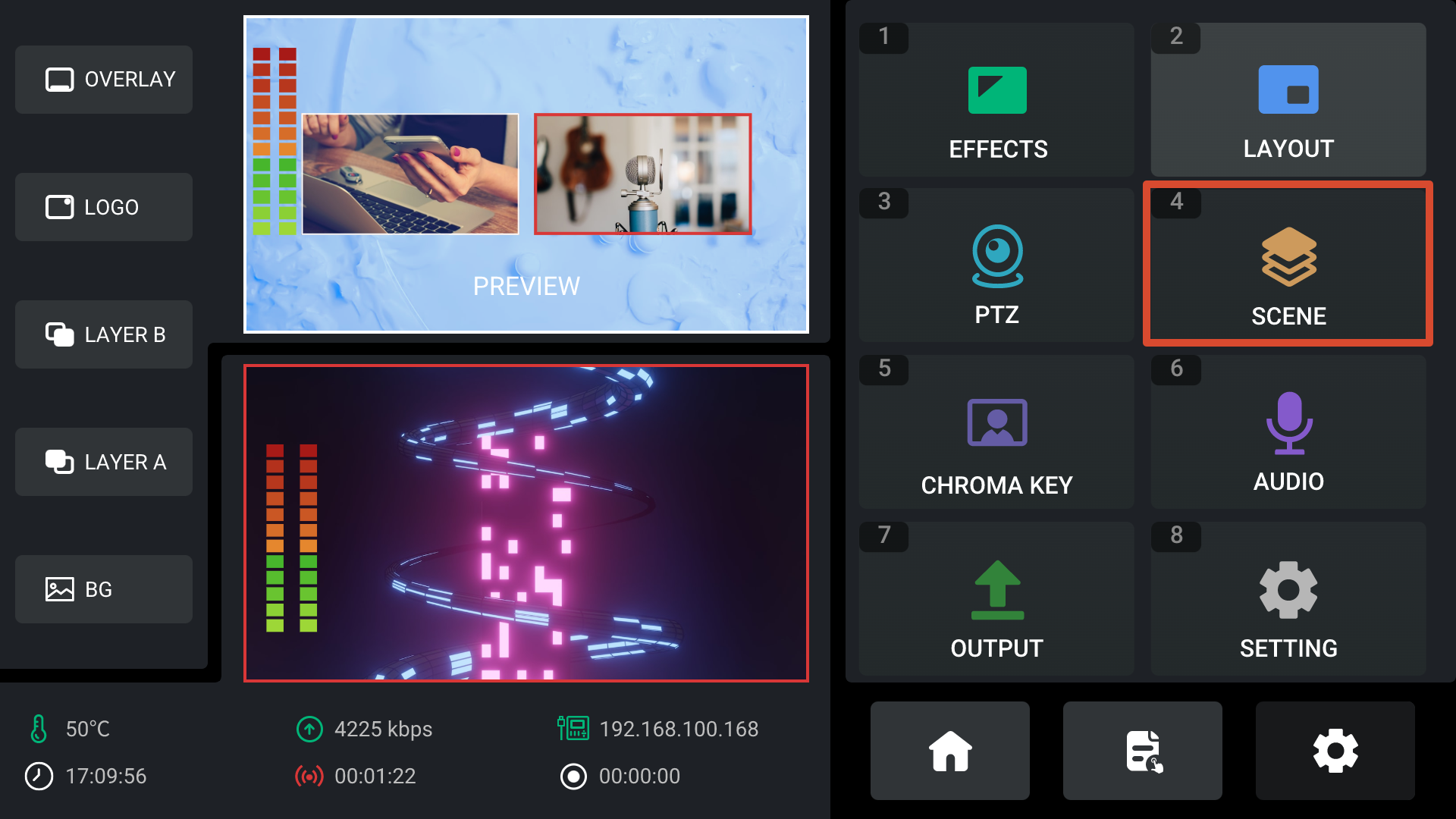
- Select Scene and press ENTER to open the Scene Management page.
- mini-edge SDI supports up to 16 scene presets.
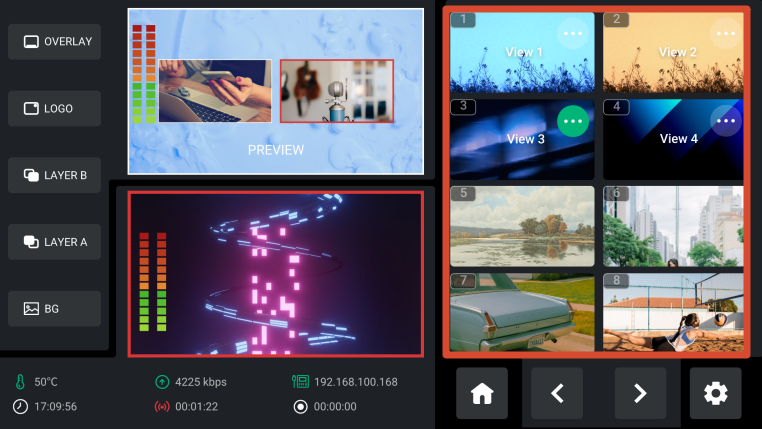
- Rotate ENTER to select a scene slot.
If the selected slot is empty:
- Press ENTER.
- Choose whether to capture the current preview image and save it as a scene.
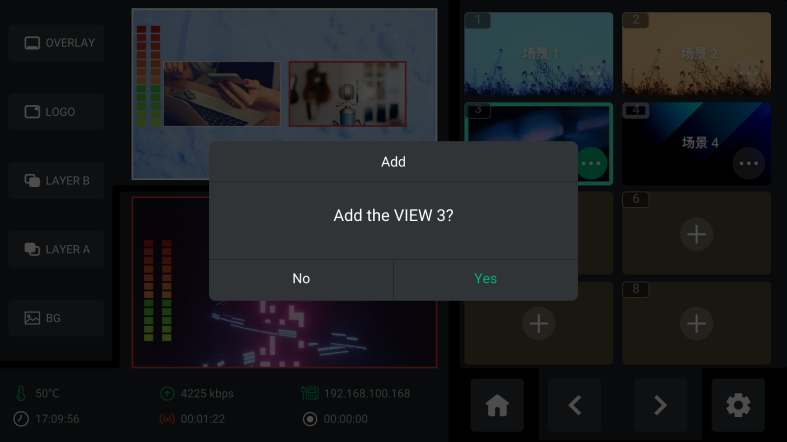
- After saving, the scene thumbnail is displayed in the selected slot.
- Scenes can also be saved directly by pressing and holding the corresponding numeric button in the VIEWS section of the front panel.
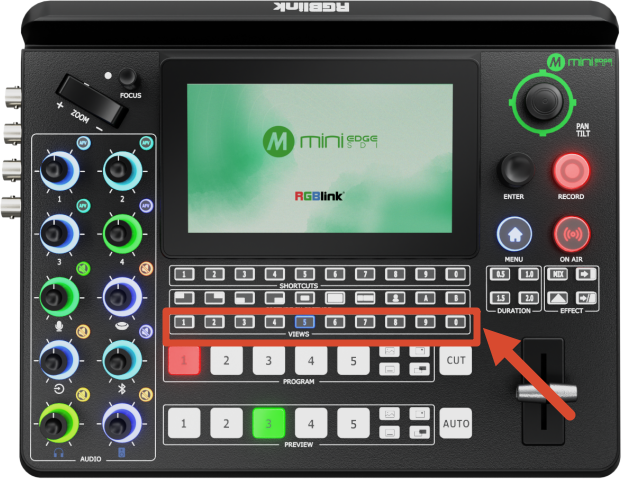
Recalling a Scene
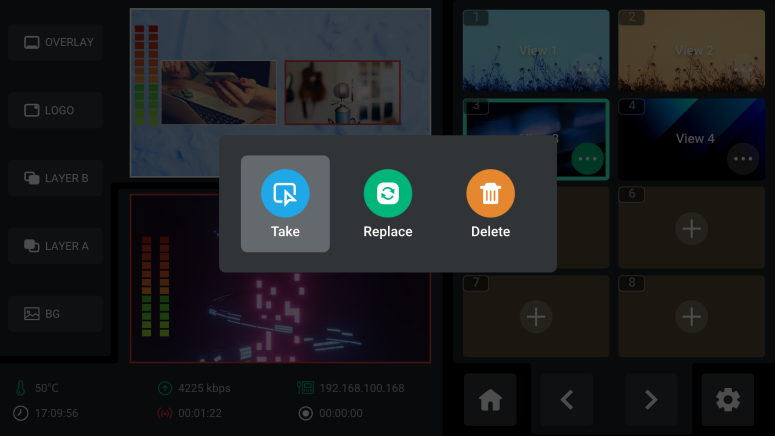
- Select a saved scene slot.
- Press ENTER.
- Select Take.
- Press ENTER to confirm.
- The selected scene is loaded into the preview output.
Replacing a Scene
- Select a saved scene slot.
- Press ENTER.
- Select Replace.
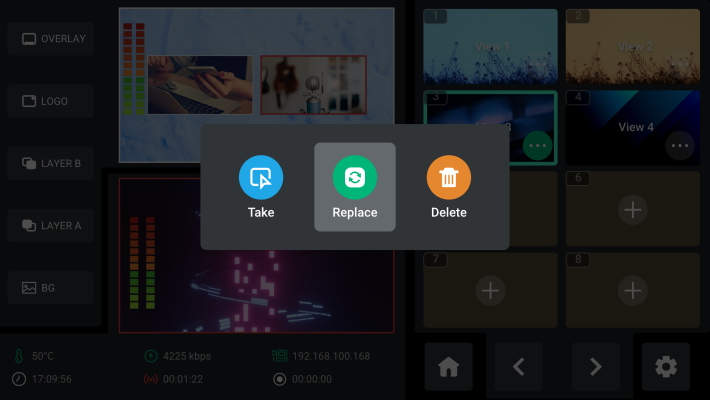
- Press ENTER to confirm. The current preview output replaces the existing scene.
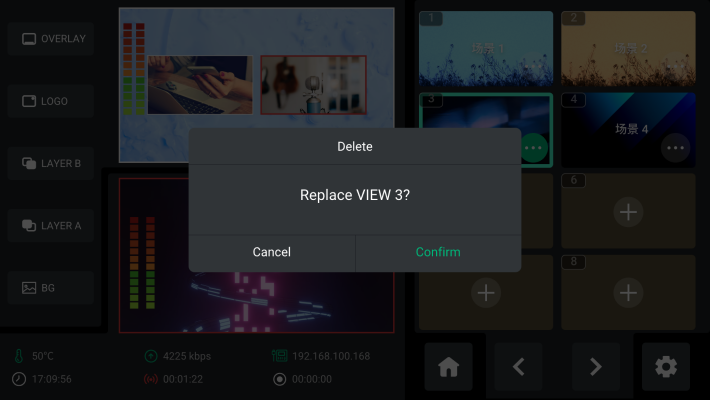
- You can also press and hold the corresponding saved scene button in the VIEWS section of the front panel. When the confirmation prompt appears, select Confirm to replace the scene.
Deleting a Scene
- Select a saved scene slot.
- Press ENTER.
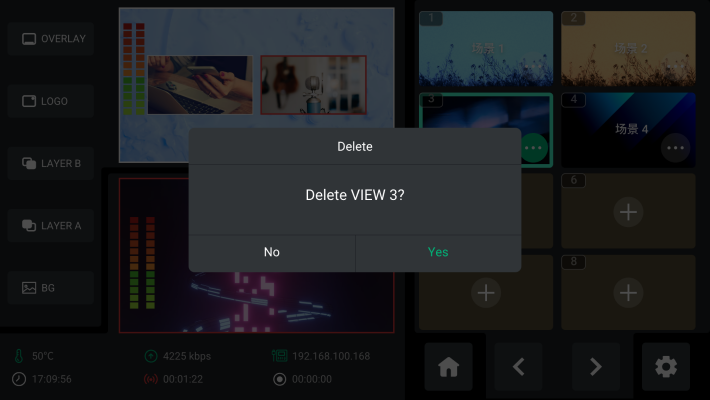
- Select Delete.
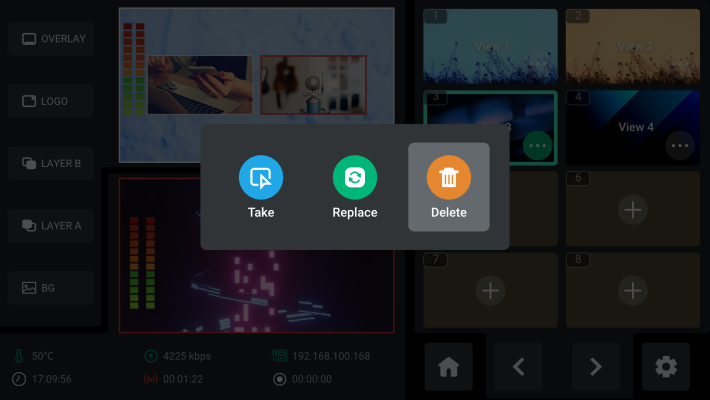
- Press ENTER to confirm.