Online Manual
mini-edge SDI User Manual

3.8 Video Output
Accessing the Output Settings Page
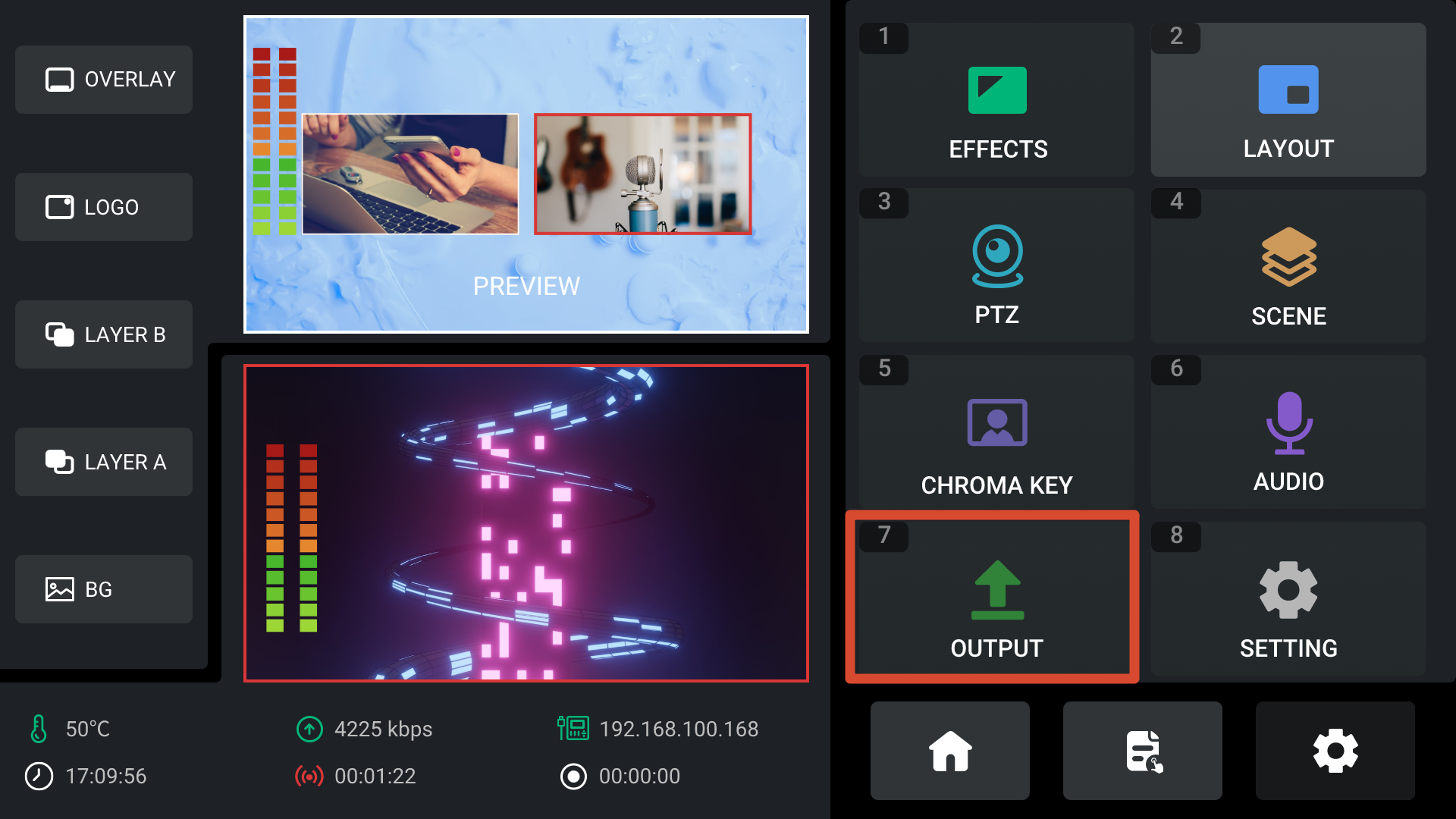
- Press MENU to enter the menu screen.
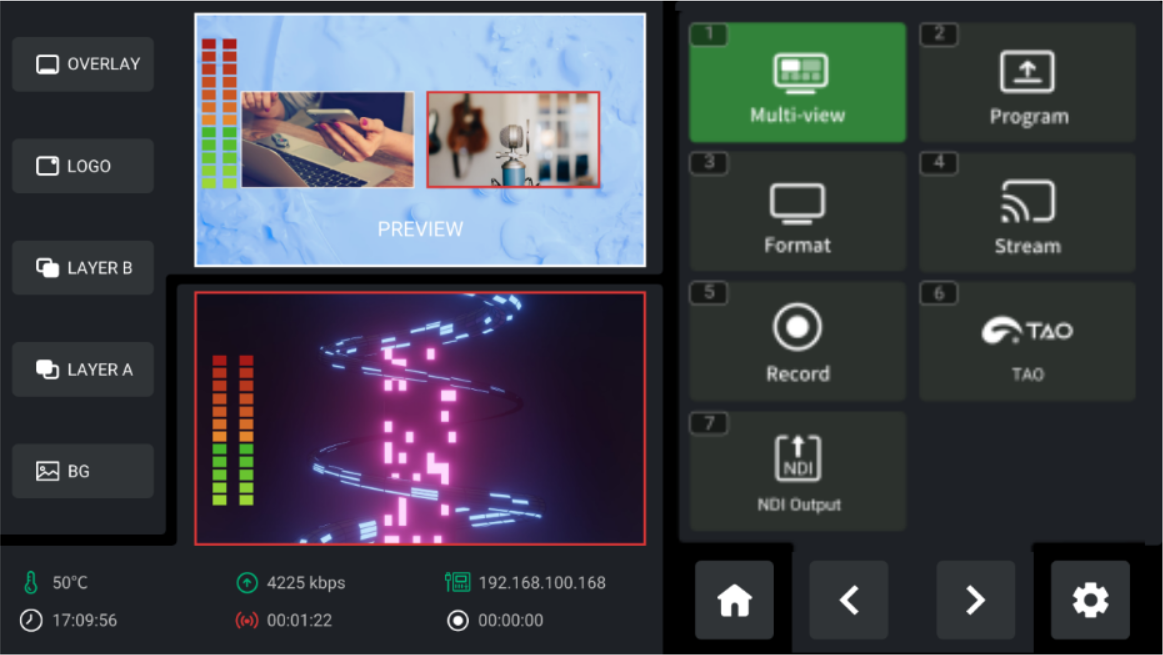
- Select OUTPUT and press ENTER to open the Output Settings page.
 | 👉 |  |
|---|
Multi-view Output Settings
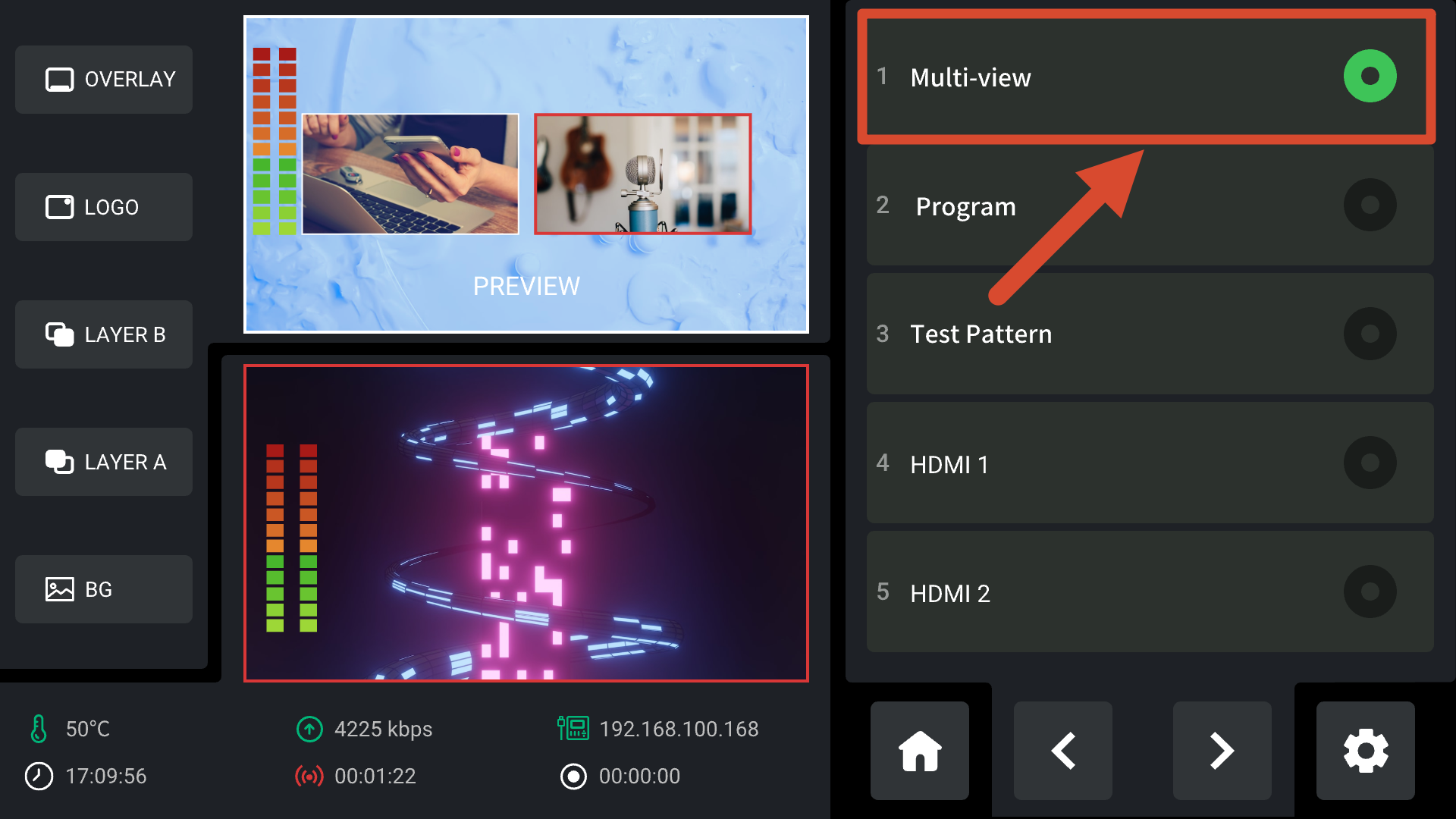
From the Output page, select Multi-view to configure the Multi-view output.
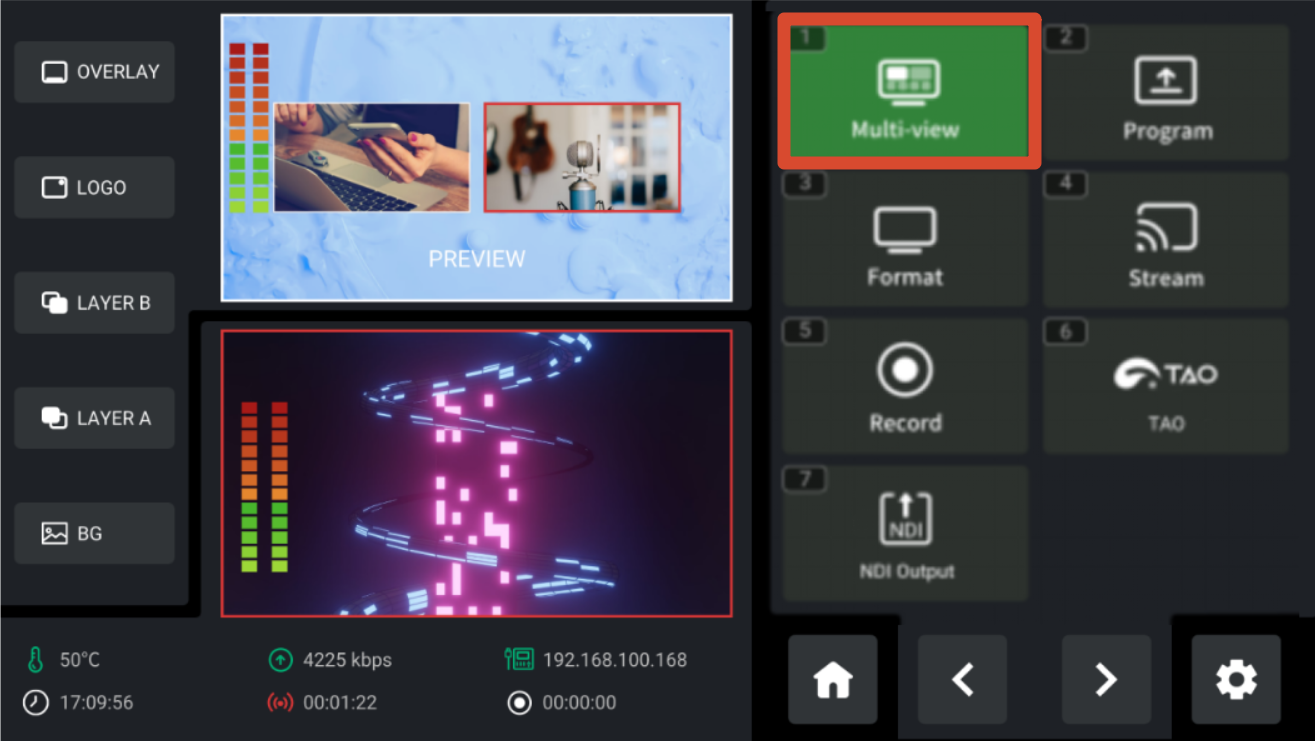
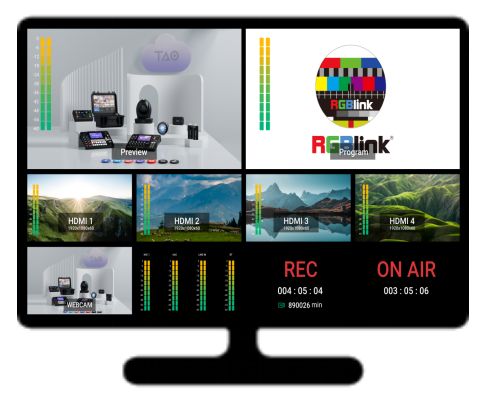
By default, the Multi-view output displays the multiview monitoring screen.
 | 👉 |  |
|---|
Users can also switch the Multi-view output to display:
- Program Output
- Test Pattern
- HDMI 1–4
- Other available sources
After switching, the connected monitor displays the selected source.
DVI/HDMI Auto Detection
The DVI/HDMI option is enabled by default.
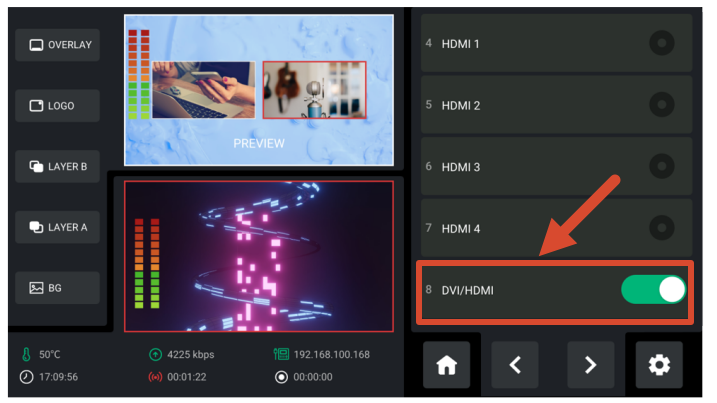
This feature is designed for environments where different types of display devices are connected, such as:
- DVI monitors
- LED sending cards
- HDMI displays
When enabled, mini-edge SDI automatically detects the connected device and selects the appropriate output mode.
Program Output Settings
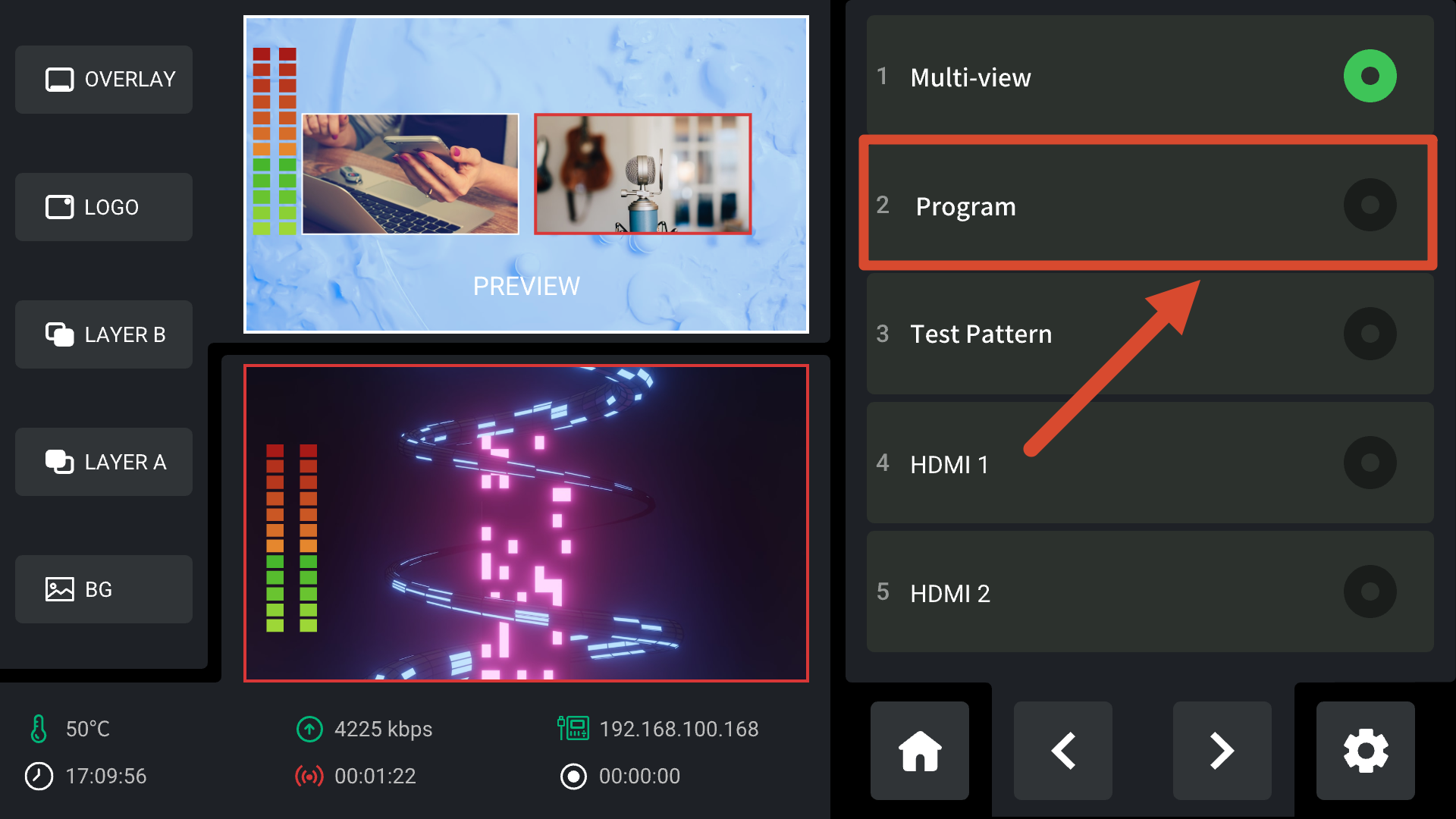
From the Output page, select Program and press ENTER to confirm.
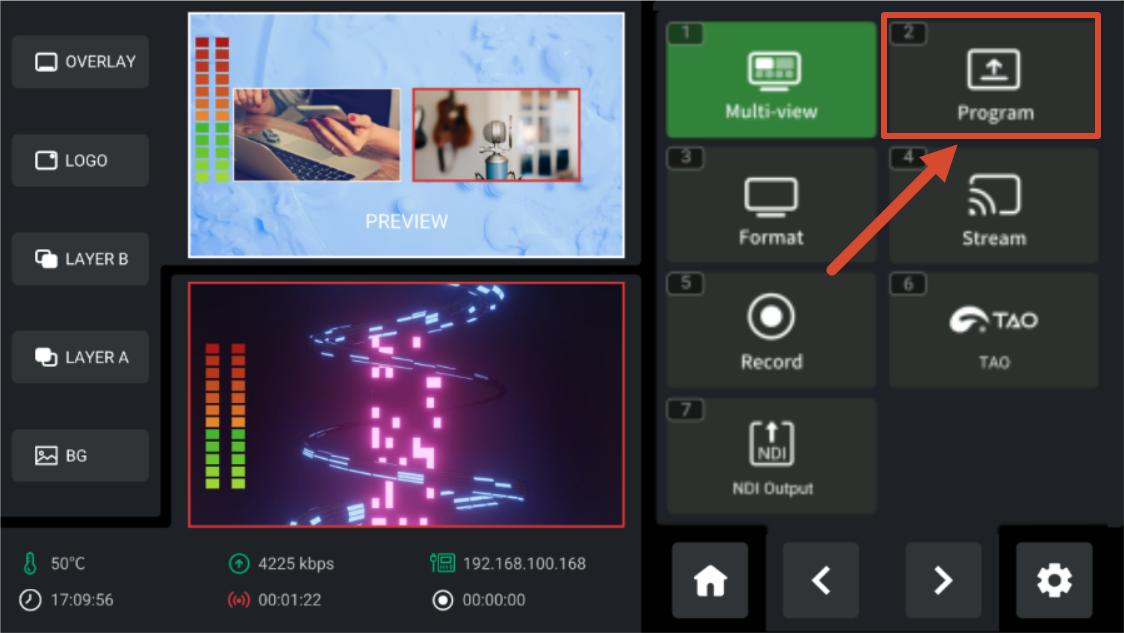
By default, Program Output is assigned to the program output channel.
 | 👉 |  |
|---|
Users can also switch the program output to:
- Multi-view
- Test Pattern
according to their application requirements.
Output Resolution Settings
mini-edge SDI supports output resolutions up to 3840 × 1080 @ 30 Hz.
Select an appropriate output resolution according to the specifications of the connected display device.
Setting the Output Resolution
- Open the Output page and select Format.
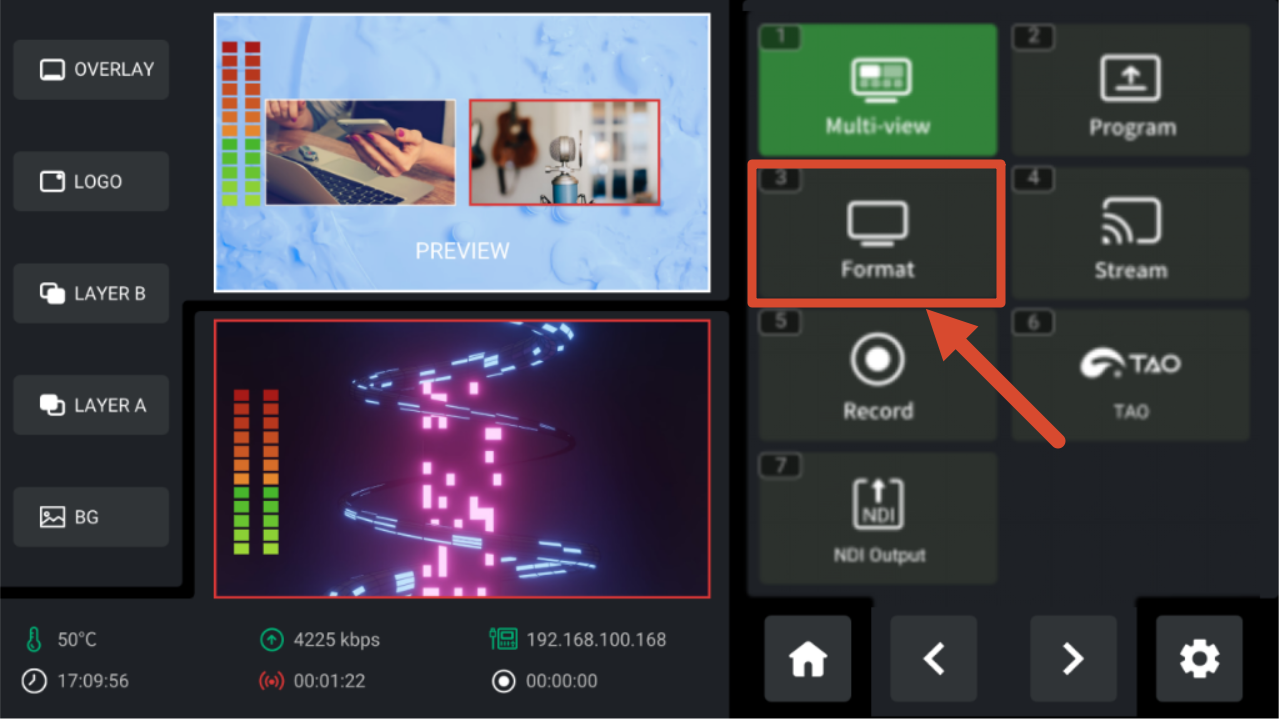
- Press ENTER to open the resolution list.
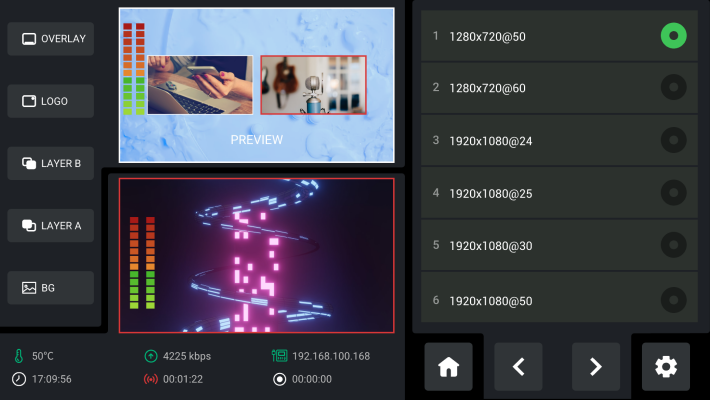
- Select the desired output resolution and confirm.
Important Notes
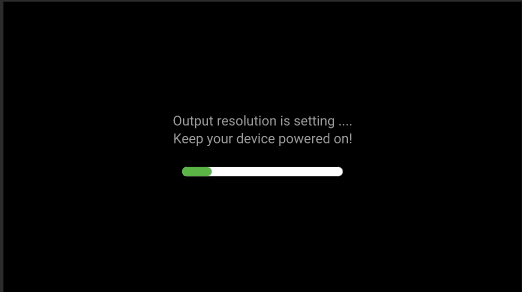
During resolution changes, ensure that the device remains powered on and operating normally.
Interrupting power during configuration may result in incorrect settings or temporary signal loss.