Online Manual
mini-edge SDI User Manual

3.5 Chroma Key
mini-edge SDI supports chroma keying, allowing a solid-color background to be removed and composited over another video source for applications such as virtual production and live streaming.
Chroma keying is disabled by default. When enabled, the effect is applied to Layer B.
Enabling Chroma Key
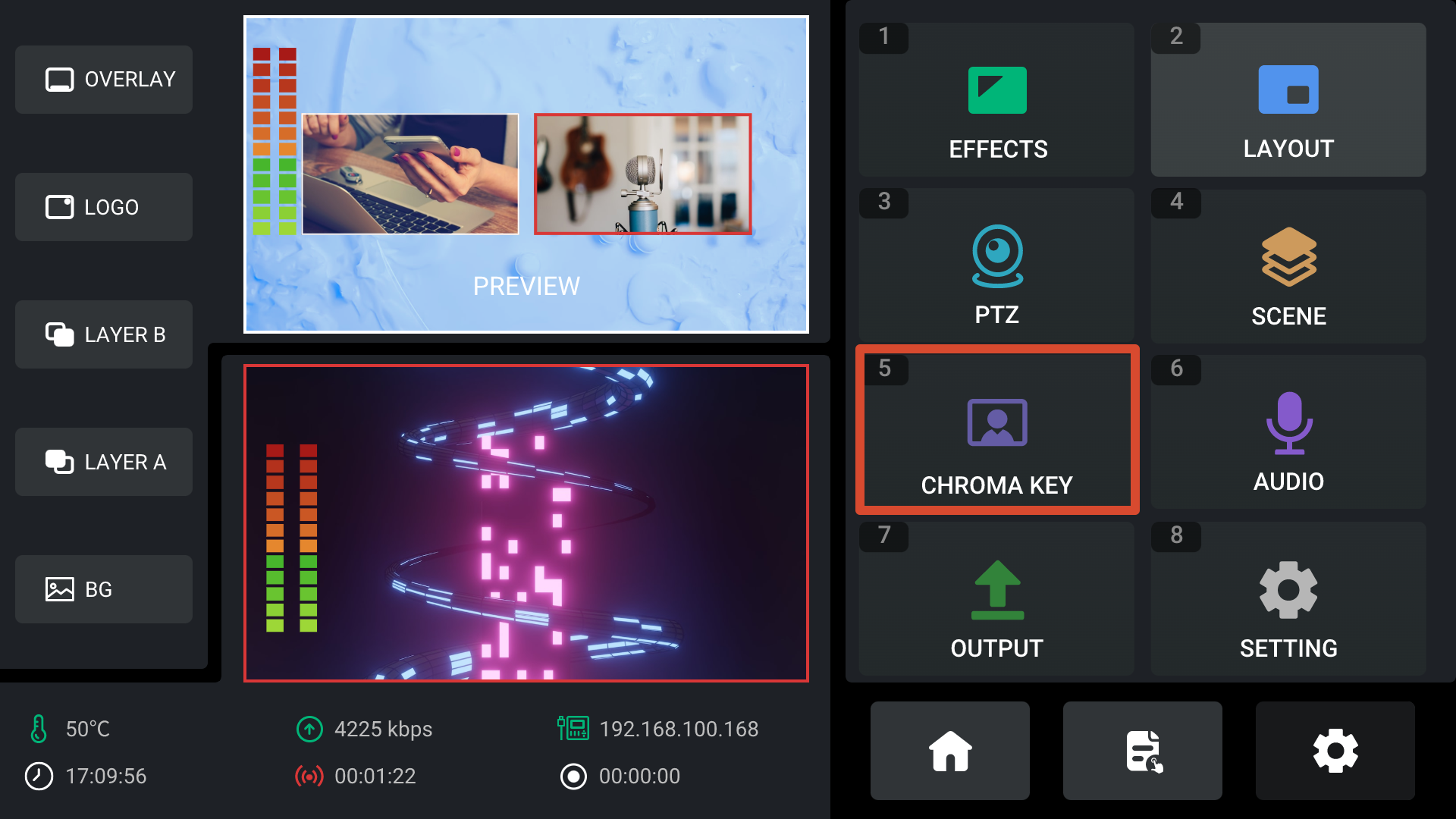
- Press MENU to enter the menu screen.
- Select CHROMA KEY and press ENTER to open the Chroma Key settings page.
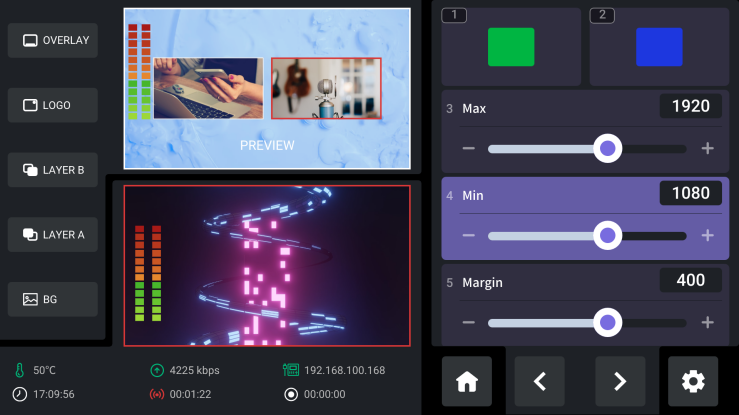
- Select the key color. Green and blue key colors are supported.
Green is selected by default.
- After chroma keying is enabled:
- The CHROMA KEY button on the front panel illuminates green.
- The B button illuminates blue.
- The preview window automatically displays the keyed Layer B output.
You can also enable chroma keying instantly by pressing the dedicated Chroma Key shortcut button in the PiP section of the front panel.

Adjusting Chroma Key Parameters
After chroma keying has been enabled, additional parameters can be adjusted on the Chroma Key page.
The following parameters are available:
- Max: Upper threshold value
- Min: Lower threshold value
- Margin: Edge adjustment value
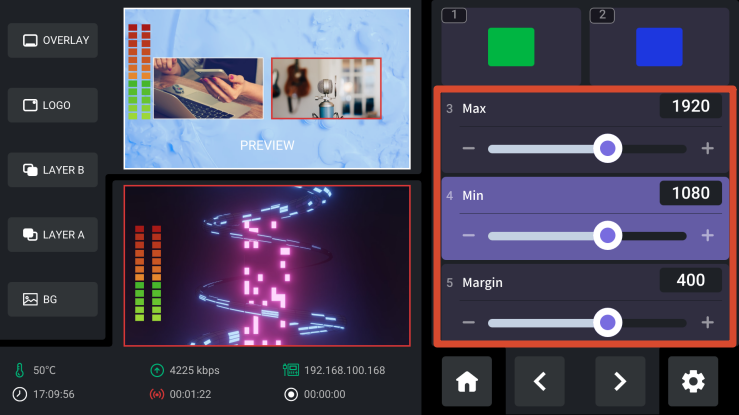
To adjust a parameter:
- Use ENTER to select the desired parameter.
- Rotate ENTER to adjust its value.
Default Green Screen Parameters:
- Max Threshold: 1232
- Min Threshold: 560
- Margin: 200
Saving Chroma Key Parameters
Chroma key settings are automatically saved to the device.
When chroma keying is enabled again, the previously saved settings can be recalled automatically, regardless of whether the feature is activated through:
- PC Control Software
- Mobile Control App
- The device front panel