Online Manual
mini-extreme ISO User Manual

2.2.6 Signal Layout
mini-extreme ISO supports displaying Layer A and Layer B in both Preview and Program. Layer A is the main picture; Layer B is the secondary picture.
Select Layer A/B
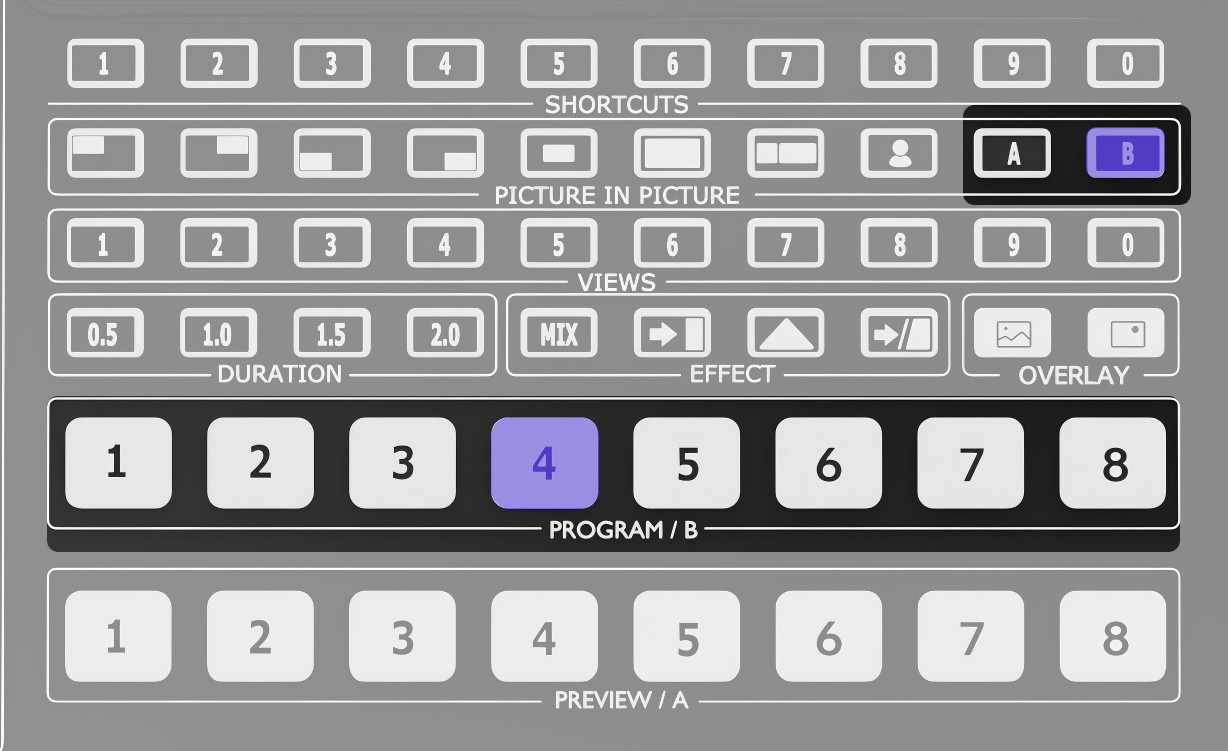
Example: Select Layer B.
- Press B. The indicator lights solid blue.
- Press an input button in the PROGRAM/B row to assign a source to Layer B.
- The assigned input button lights solid blue.
Set the PIP Layout
mini-extreme ISO provides 7 PIP layouts. Select a layout, then adjust the size and position of Layers A and B.
- Select a PIP layout.
- Press A or B to edit the corresponding layer.
- Turn the ZOOM control to adjust the layer size.
- Move the 5-Direction Joystick to adjust the layer position.
Apply Chroma Key to Layer B
Chroma key is applied to Layer B by default.
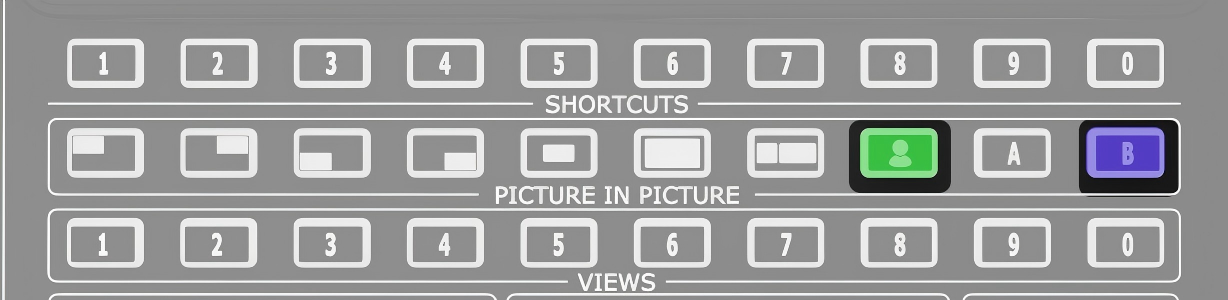
- Press B. The indicator lights solid blue.
- Press the Chroma Key button in the PIP row.
- Go to Chroma Key and enable the color picker. Adjust the chroma key settings.
Save and Recall a Scene
Save the current layer and layout settings as a scene.
- Press and hold any unlit button in the VIEWS row, or save the current settings from the Scene menu.
- Press the corresponding saved scene button to recall the scene.