Online Manual
mini-extreme ISO User Manual

3.4 Output
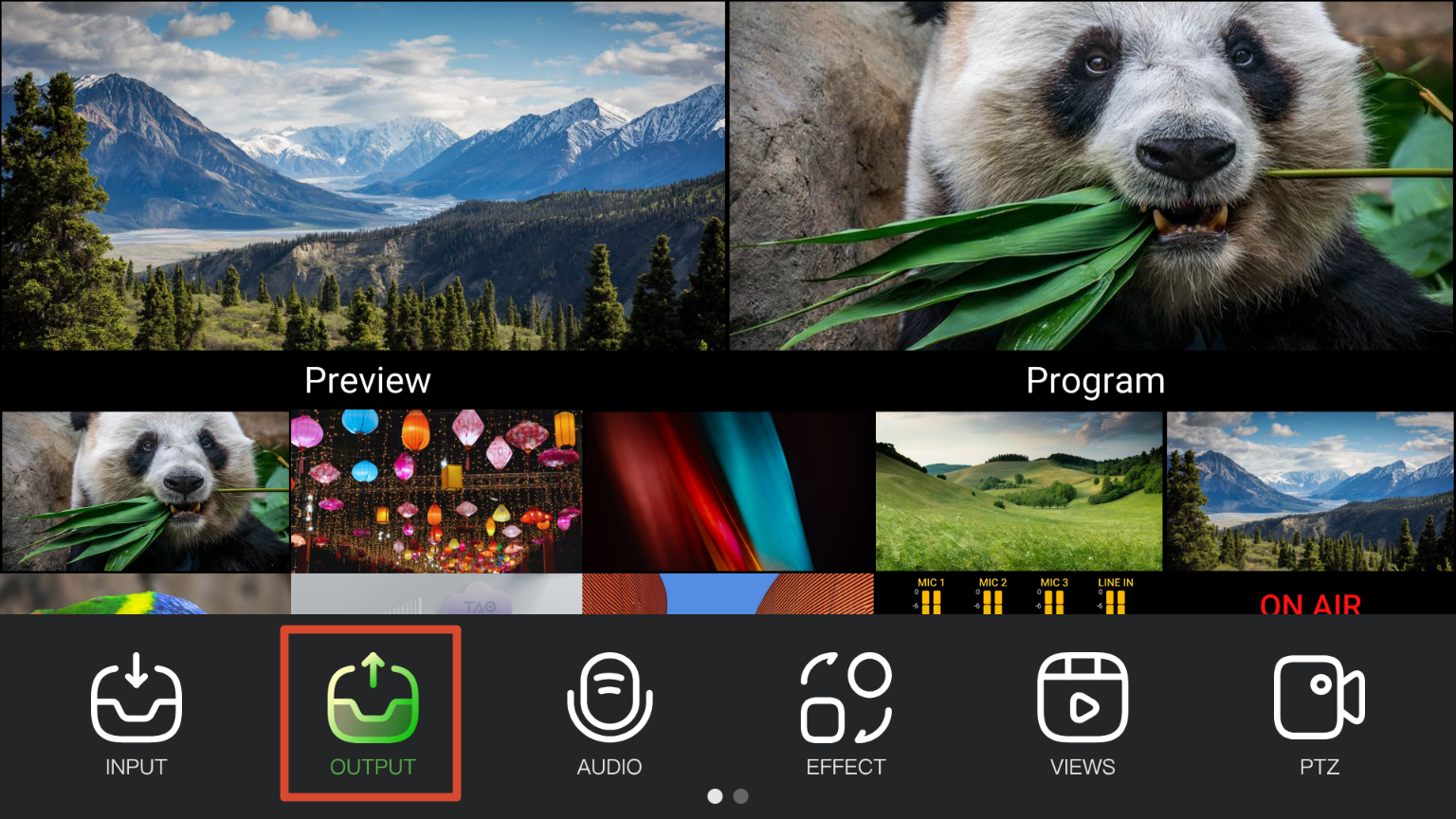
mini-extreme ISO provides two output modes.
- Preview output for monitoring input sources and device status.
- Program output for display devices, recording devices, or streaming platforms, delivering the final program output.
3.4.1 Preview
Preview output is displayed on a monitor connected to the MULTI-VIEW port.

The MULTI-VIEW port outputs a fixed 12-window multiview layout at 1080P60.
The built-in 5.5-inch touchscreen displays the same multiview content.
📢  Notes

The MULTI-VIEW resolution is fixed at 1080P60 and cannot be changed.
3.4.2 Program
Program output is displayed on a monitor connected to the PROGRAM port.
You can also connect USB-C 2 to a computer using a USB cable.
The computer will recognize mini-extreme ISO as a USB camera source, allowing the program output to be used directly in third-party streaming and conferencing applications.
📢  Notes

The UVC output follows the PGM output and cannot be configured independently.

Test Screen
The test screen function can be used to output color bars for connection verification.
- Press MENU.
- Select OUTPUT > test screen.
- Enable color bar.

3.4.3 Resolution
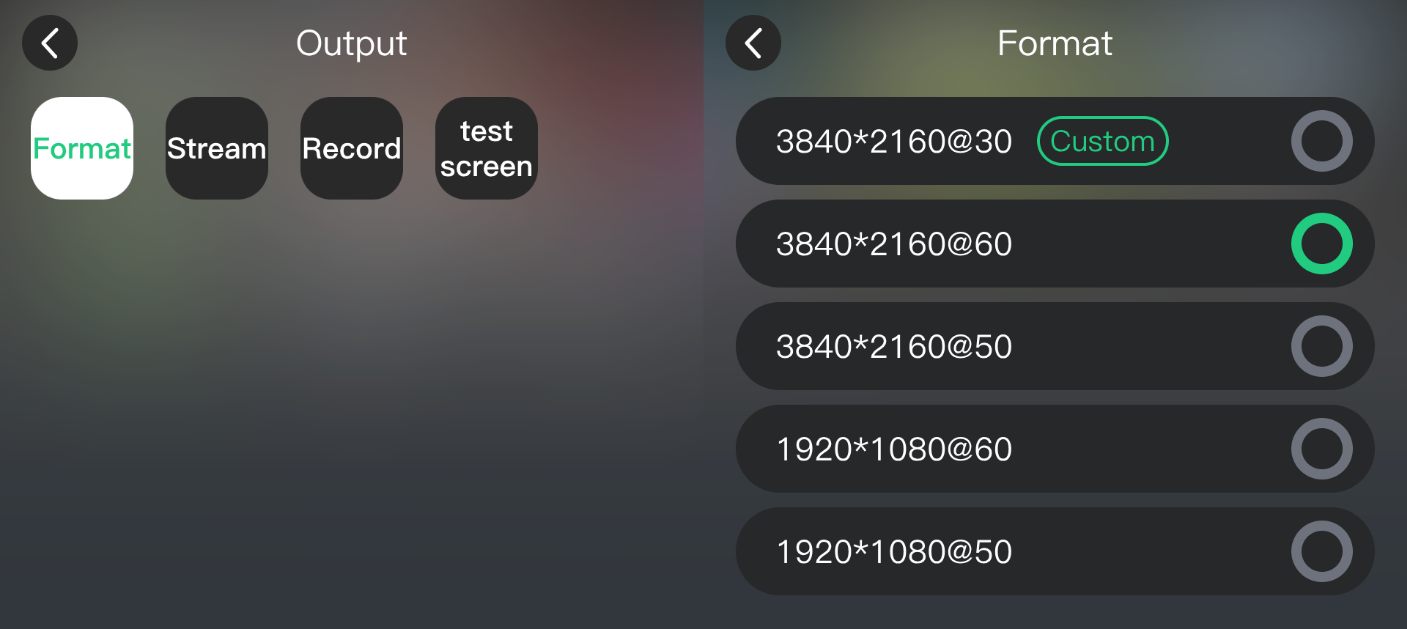
mini-extreme ISO supports output resolutions up to 3840 × 2160@60 Hz.
The default output resolution is 3840 × 2160@60 Hz and is automatically compatible with lower-resolution display devices.
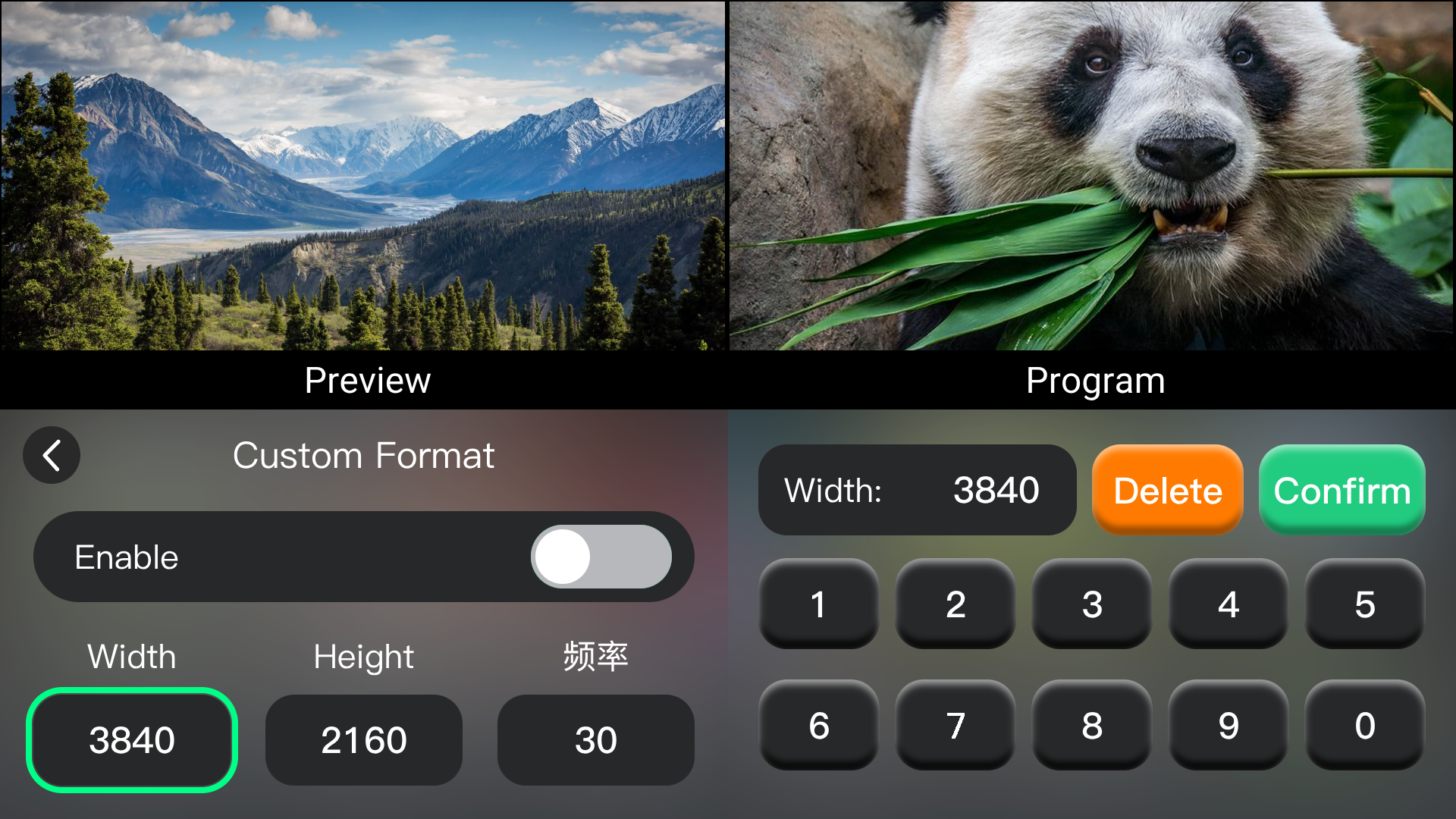
Custom output resolutions are also supported.
- Select MENU > OUTPUT > Format.
- Select the desired output resolution.
- Click Confirm.
 | 👉 |  |
|---|