Online Manual
mini-extreme ISO User Manual

3.7 Transition Effects
mini-extreme ISO provides multiple transition effects. Select different effects and durations to create smoother scene changes.
3.7.1 Selecting a Transition Effect
Select a transition effect in either of the following ways:
- Use the EFFECT buttons on the front panel for quick access to 4 commonly used effects.
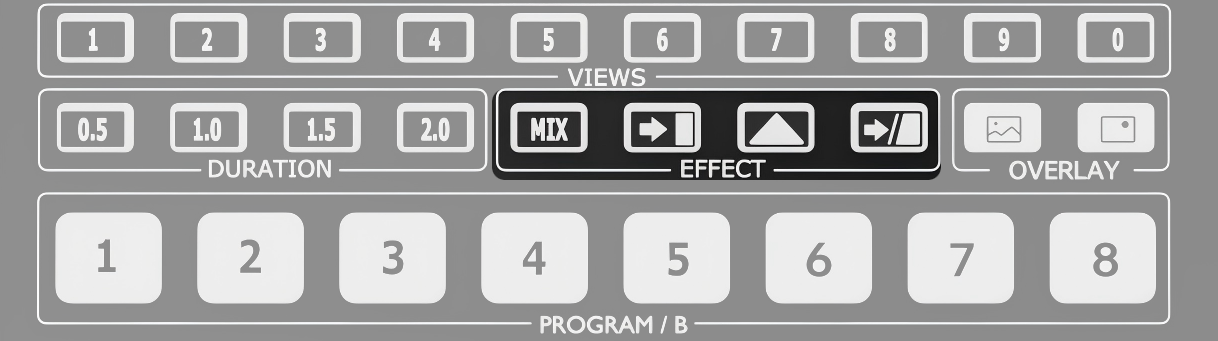
- Navigate to MENU > EFFECT.
3.7.2 Transition Effect Descriptions
The following effects are supported:
Cut
The Source 1 switches to Source 2 instantly with no transition effect.
 | 👉 |  |
|---|
Mix
During the transition, Source 1 gradually fades out while Source 2 gradually fades in, blending together smoothly.
 | 👉 |  |
|---|
Right to Left Wipe
Source 2 wipes from right to left over Source 1 until the transition is complete.
 | 👉 |  |
|---|
Left to Right Wipe
Source 2 wipes from left to right over Source 1 until the transition is complete.
 | 👉 |  |
|---|
Bottom Up Wipe
Source 2 wipes upward over Source 1 until the transition is complete.
 | 👉 |  |
|---|
Top Down Wipe
Source 2 wipes downward over Source 1 until the transition is complete.
 | 👉 |  |
|---|
Venetian Blinds Right
Source 2 appears in vertical strips expanding horizontally from the center, creating a venetian blinds transition effect.
 | 👉 |  |
|---|
Dip
Dip supports using image files as transition frames.
When this effect is enabled, Source 1 gradually fades to the selected image, then transitions from the image to Source 2.
 | 👉 |  |
|---|
Dip Settings
- Rename PNG image files as
image1,image2,image3, and so on. Set the image size according to the output resolution. - Store the image files in the
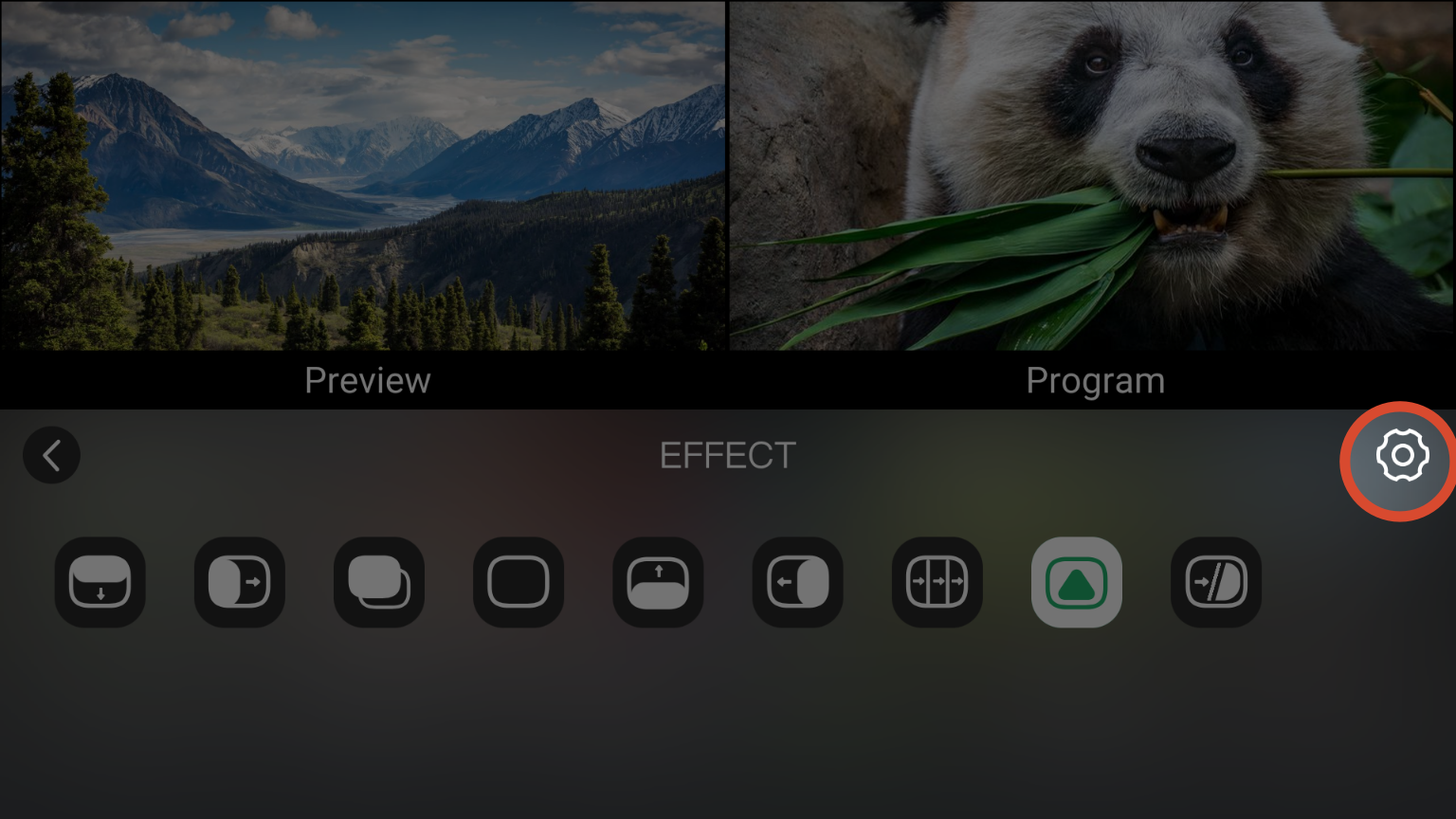
mini extreme/imagefolder on the device disk. - Click the Dip icon.
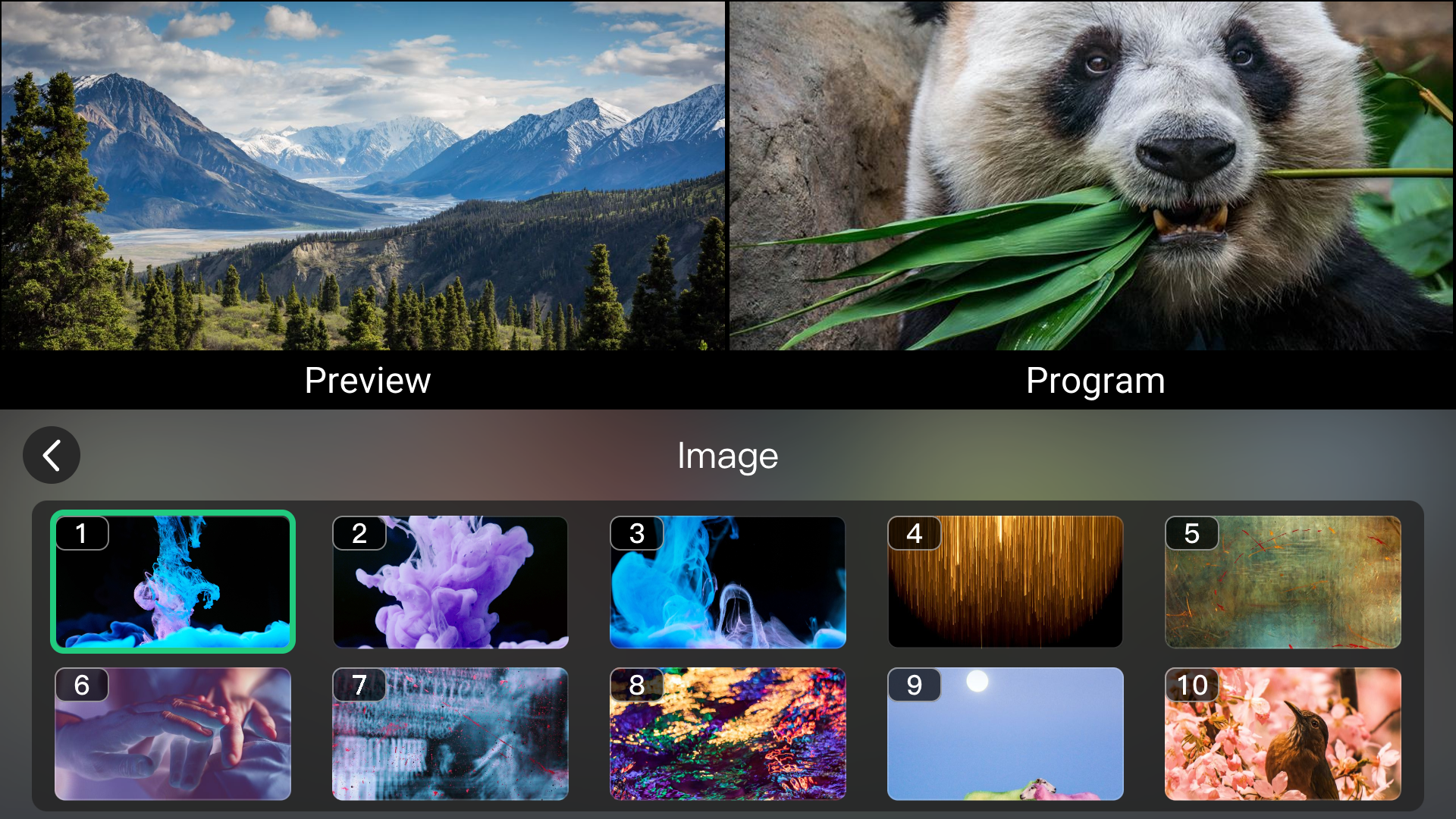
- Click the Settings icon ⚙ in the upper-right corner to open the image library.
- Select the required image as the Dip effect source.
 | 👉 |  |
|---|
Merge
Blends two video sources together to create a soft compositing effect.
 | 👉 |  |
|---|
3.7.3 Setting the Transition Duration
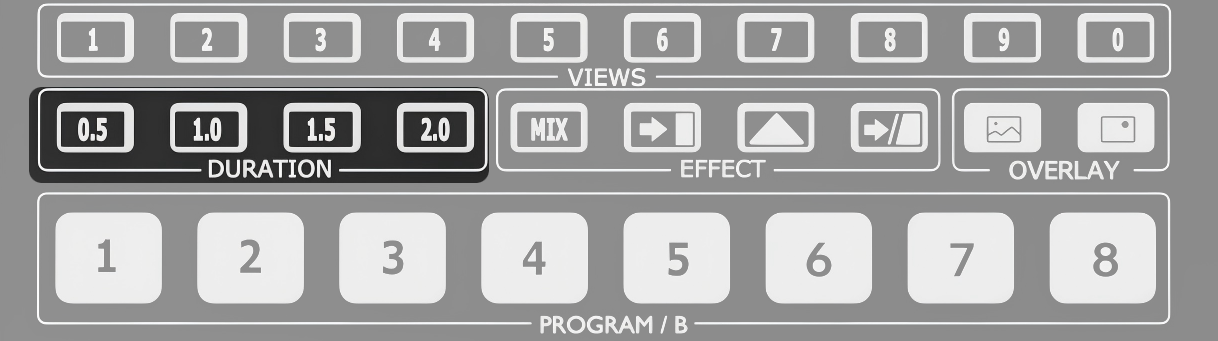
Use the DURATION controls on the front panel to adjust the transition duration.
The duration is measured in seconds.
Longer durations create smoother and more gradual transition animations.