Online Manual
mini-extreme ISO User Manual

3.6 Audio
mini-extreme ISO supports audio mixing for embedded audio, microphones, and line-level inputs.
AFV (Audio Follow Video), audio effects, and output volume control are also supported.
Audio settings can be configured from the front panel or the AUDIO menu.
3.6.1 Front Panel Controls
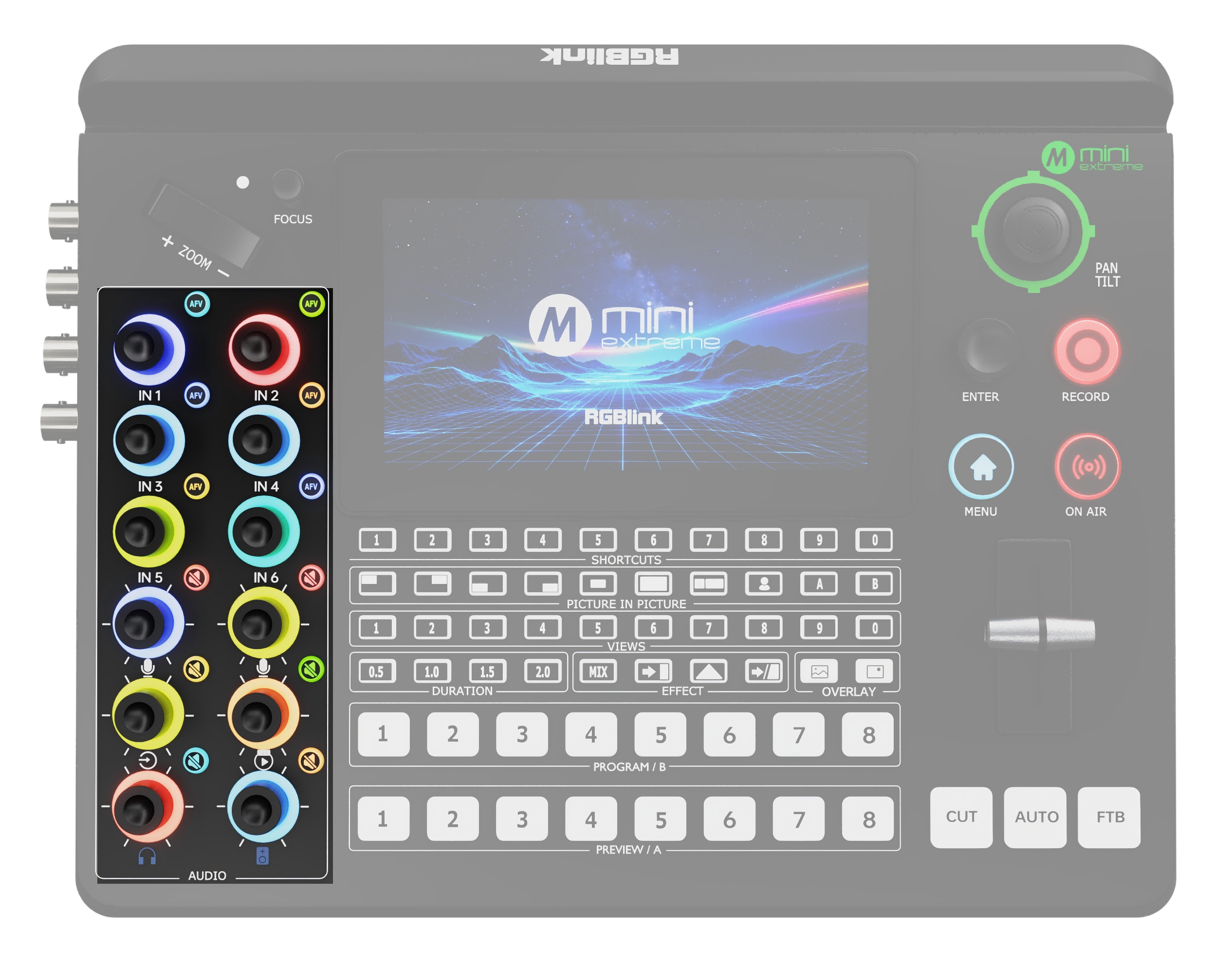
| Icon | Description |
|---|---|
 | Audio Follow Video. Automatically switches the main audio output according to the current Program source. When enabled, the embedded audio from the active Program source is output automatically. For example, when HDMI 1 is switched to Program, the embedded audio from HDMI 1 is output. |
 | Mutes the embedded audio of the selected video source only. Other audio sources are not affected. |
 | Controls audio from the MIC 1 and MIC 2 inputs. Supports dynamic microphones, condenser microphones, and other audio input devices. |
 | Controls audio from the Line-in input. Used for line-level signals from computers, smartphones, mixers, or audio players. |
 | Adjusts monitor output volume. Does not affect Program output volume. |
 | Adjusts the main output volume used for recording, streaming, and live sound reinforcement. |
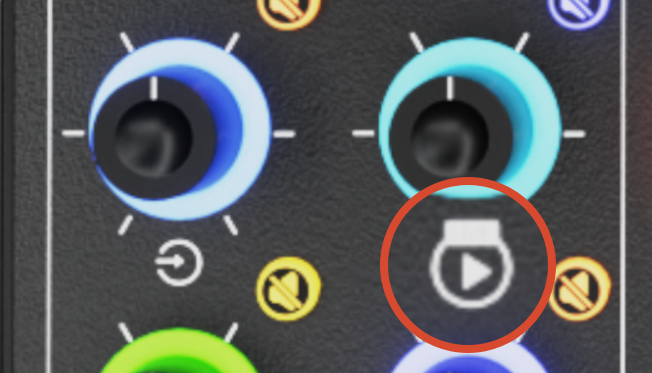 | Adjust the volume of the UVC input sources on IN 7/IN 8 |
3.6.2 Audio Source Management
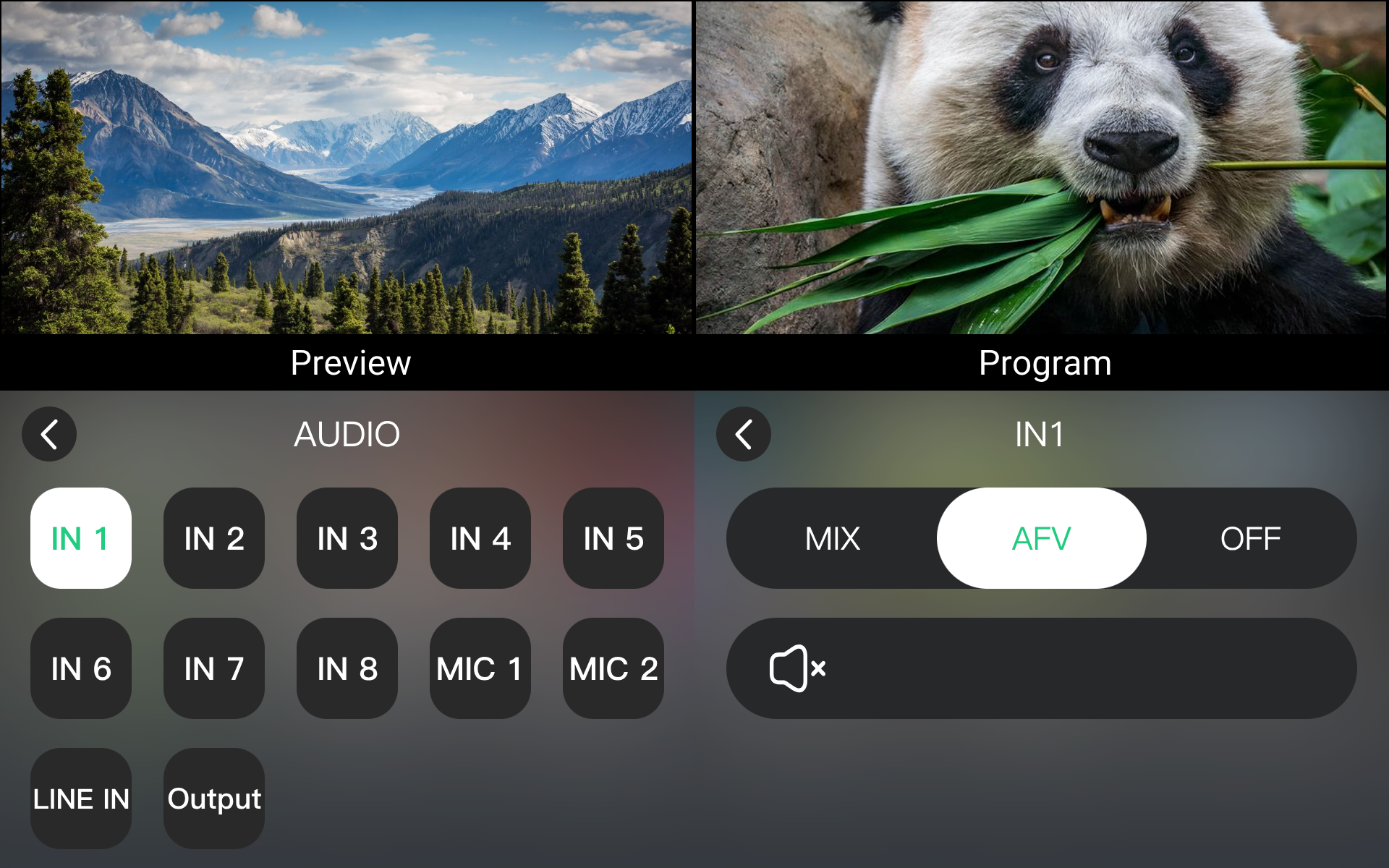
Go to MENU > AUDIO to view and manage all audio sources.
| Icon | Description |
|---|---|
| IN 1-4 | Embedded audio from HDMI 1 -4 |
| IN 5 | Embedded audio from SDI 1 or SDI 2 |
| IN 6 | Embedded audio from SDI 3 or SDI 4 |
| IN 7 | UVC Audio |
| IN 8 | NDI Audio |
| MIC 1 | Microphone input 1 |
| MIC 2 | Microphone input 2 |
| LINE-IN | Line-level input |
Embedded Audio Mixing
Embedded audio refers to audio extracted from HDMI and SDI inputs.
- Press MENU.
- Select Audio.
- Select IN1–IN6.
- Set the mode to MIX, AFV, or OFF.
Each embedded audio source supports the following modes:
| Mode | Description |
|---|---|
| MIX | Includes the audio source in the main mix. |
| AFV | Audio follows AFV switching. |
| OFF | Excludes the audio source from the main mix. |
MIC and Line-in Input
🚨  Attention

Enable 48 V Phantom Power before using a condenser microphone that requires phantom power.
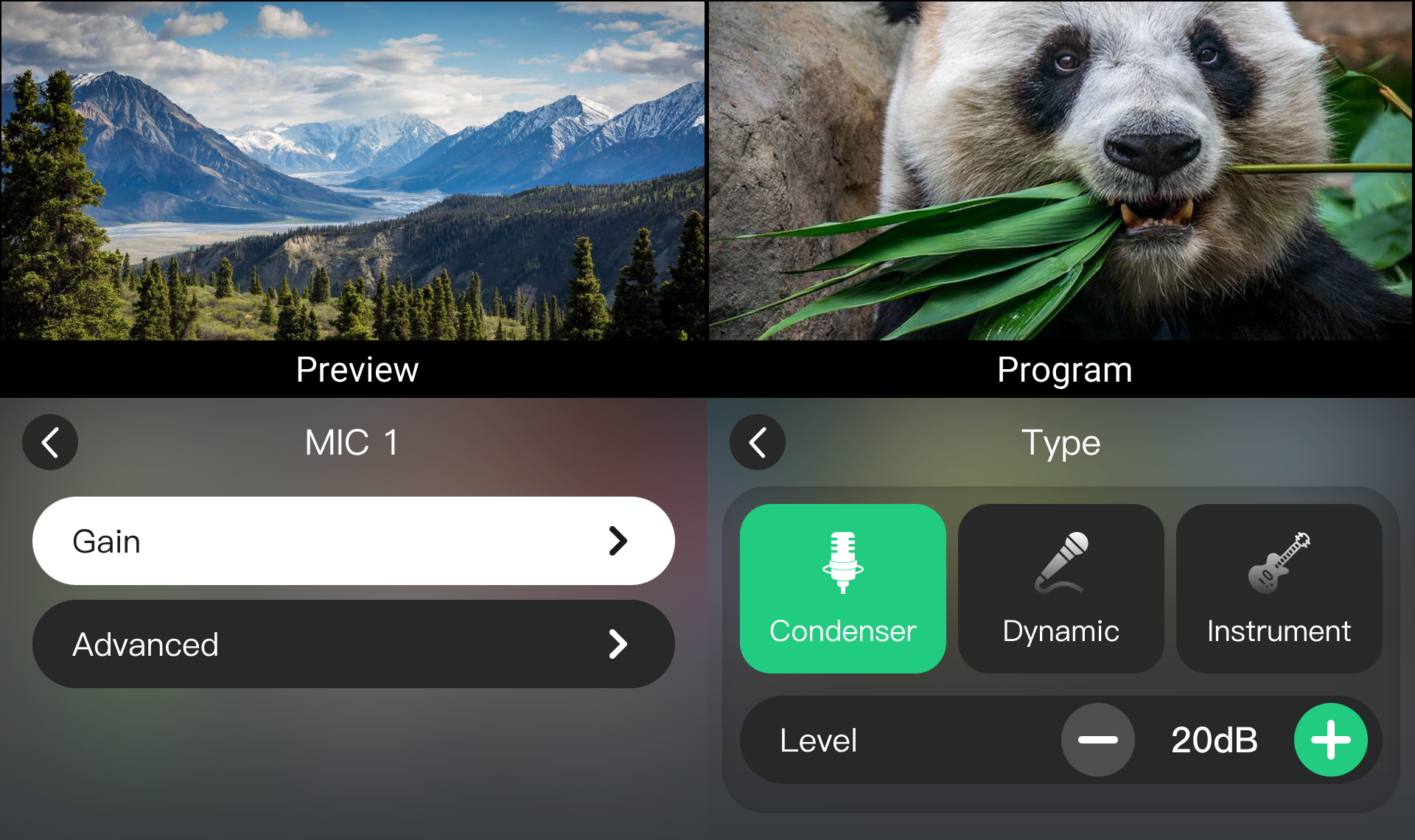
mini-extreme ISO supports MIC 1, MIC 2, and Line-in inputs. Input levels can be adjusted independently.
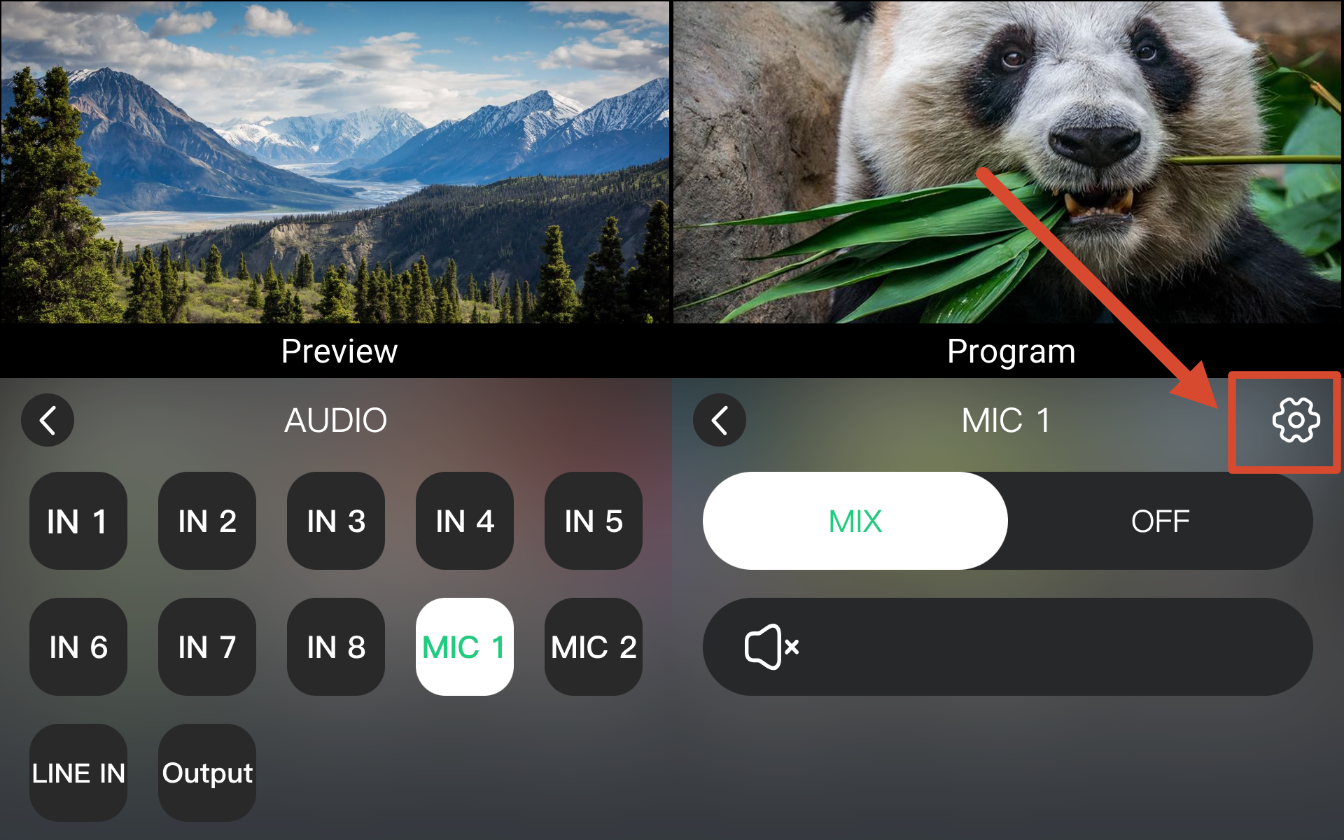
- Go to MENU > AUDIO.
- Select MIC 1, MIC 2, or LINE IN.
- Click ⚙.
- Select Gain.
- Select the input device type, then use + or − to adjust the level.
 | 👉 |  |
|---|
Line-in Input
The 6.35 mm Line-in port provides unbalanced stereo audio input. The default input gain is 0 dB.
Adjust the volume and gain according to the input signal level.
3.6.3 Advanced
mini-extreme ISO supports real-time audio processing.
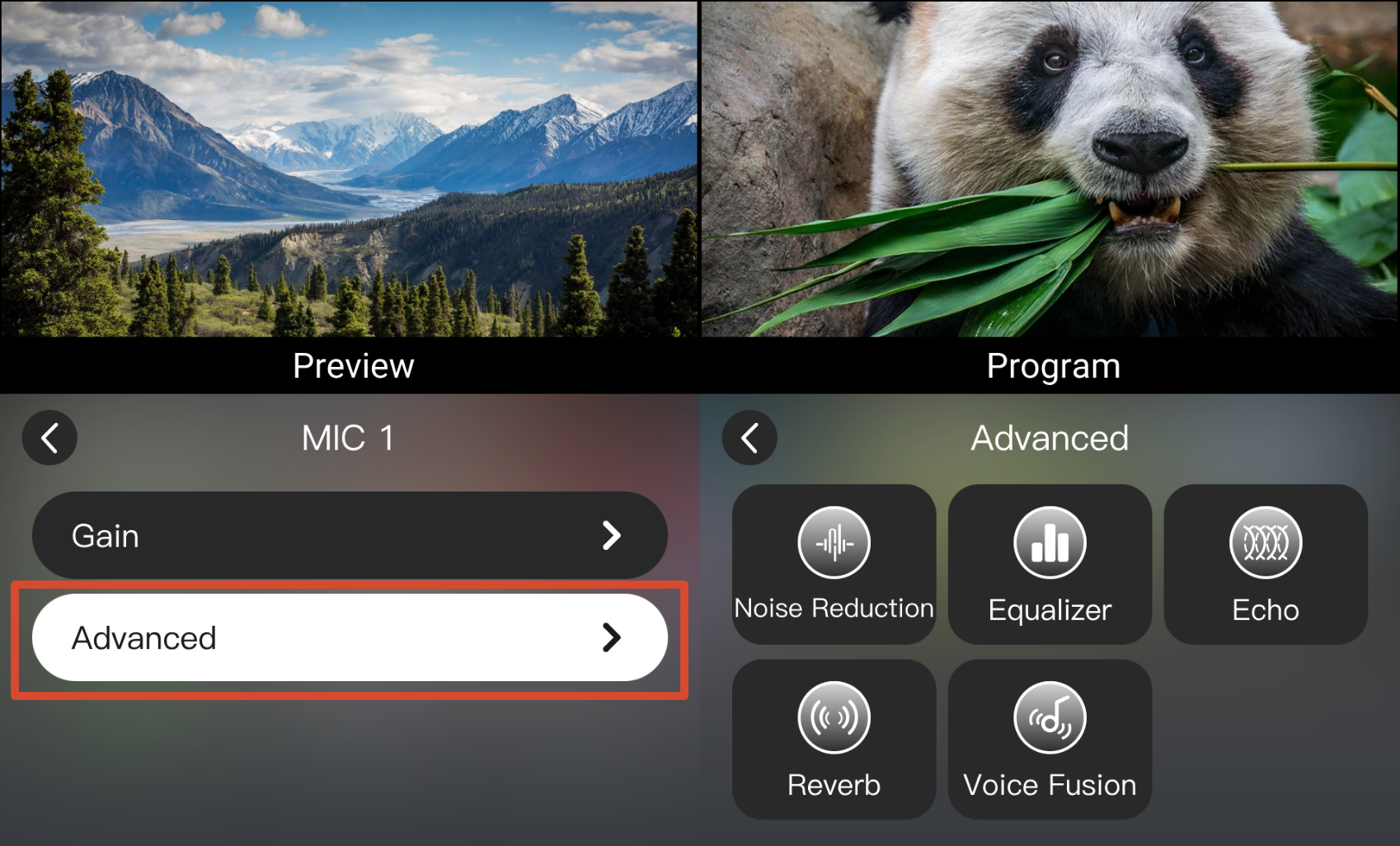
- Go to MENU > AUDIO.
- Select the desired audio source and choose Advanced settings.
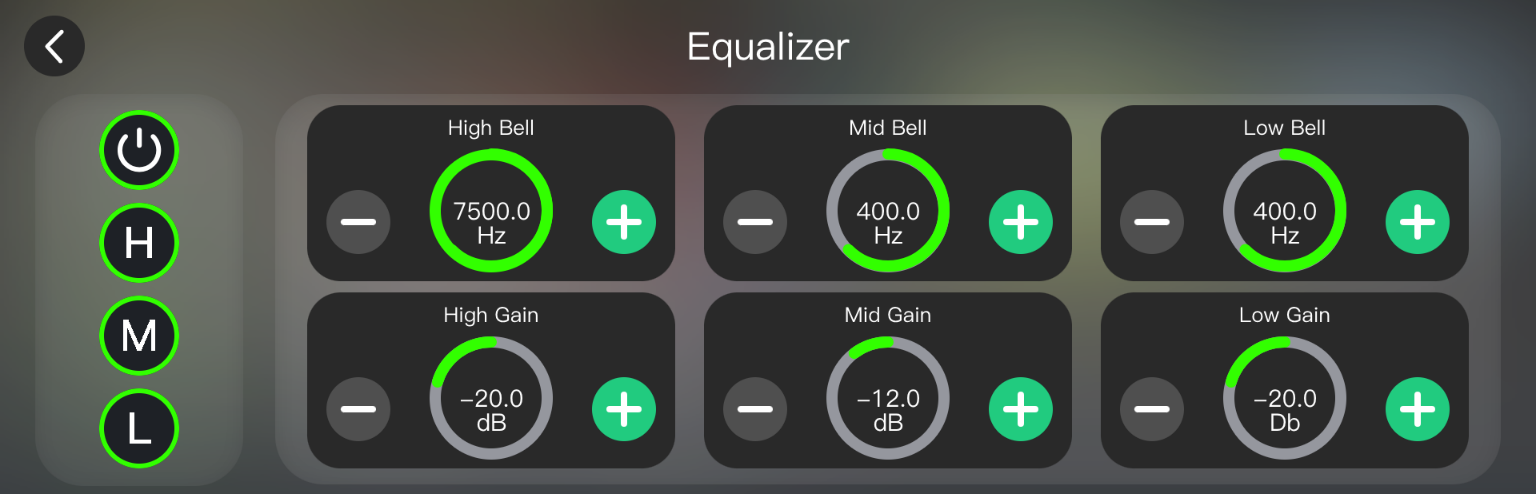
- Click the required effect icon.
 | 👉 |  |
|---|
- Use + or − to adjust parameters.
- Supported audio effects:
| Noise Reduction | Equalizer | Echo | Reverb | Voice Fusion | |
|---|---|---|---|---|---|
| MIC 1 and MIC 2 | √ | √ | √ | √ | √ |
| LINE IN | × | √ | √ | √ | √ |
3.6.4 Output Volume
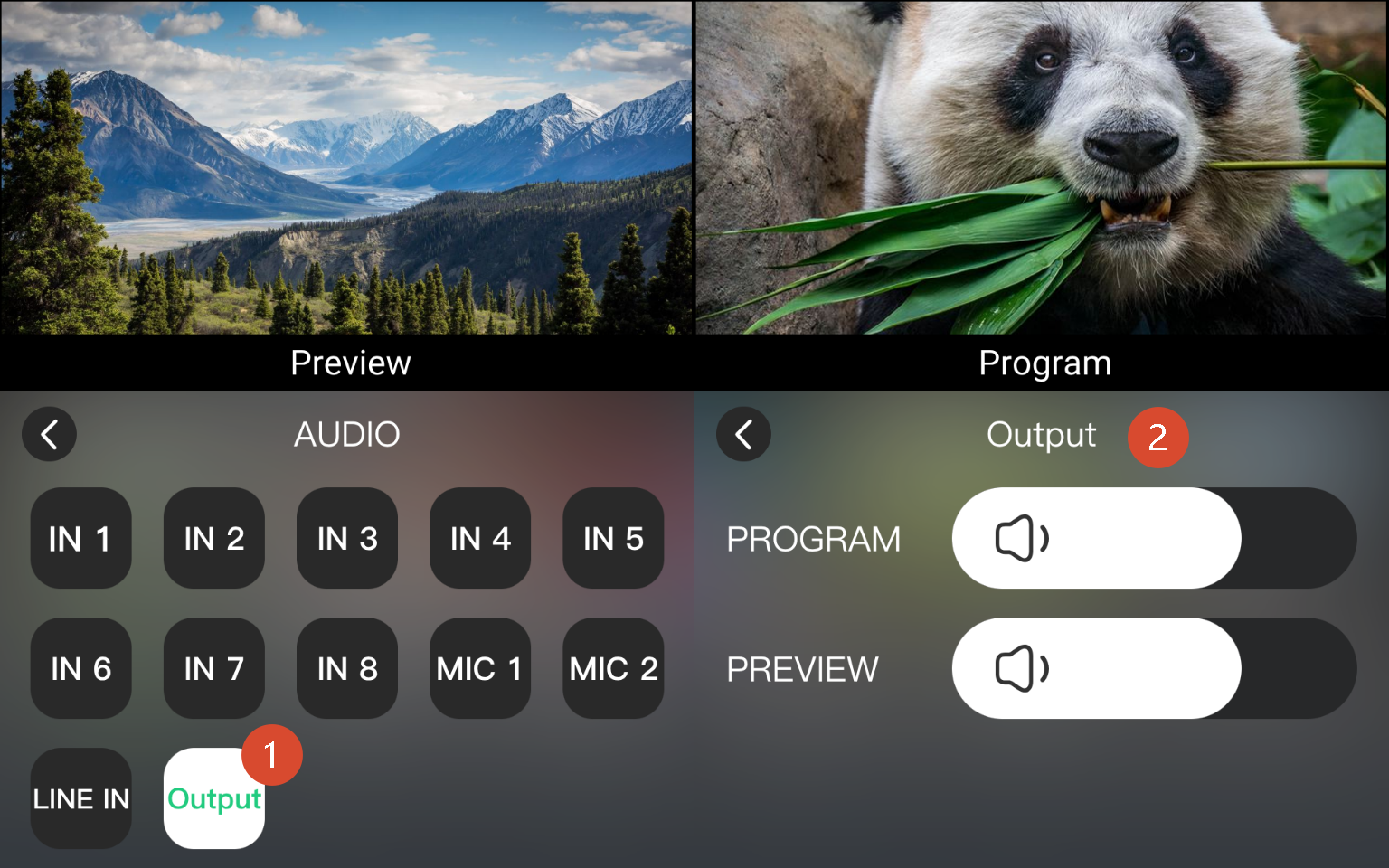
mini-extreme ISO provides two audio outputs. Use the volume sliders to adjust the output level.
| Output | Description |
|---|---|
| PROGRAM | Main output containing the final audio mix |
| Multi-view | Monitor output for local monitoring only. |
📢  Notes

Adjusting the monitor volume does not affect the Program output volume.