Online Manual
mini-extreme ISO User Manual

3.9 Views
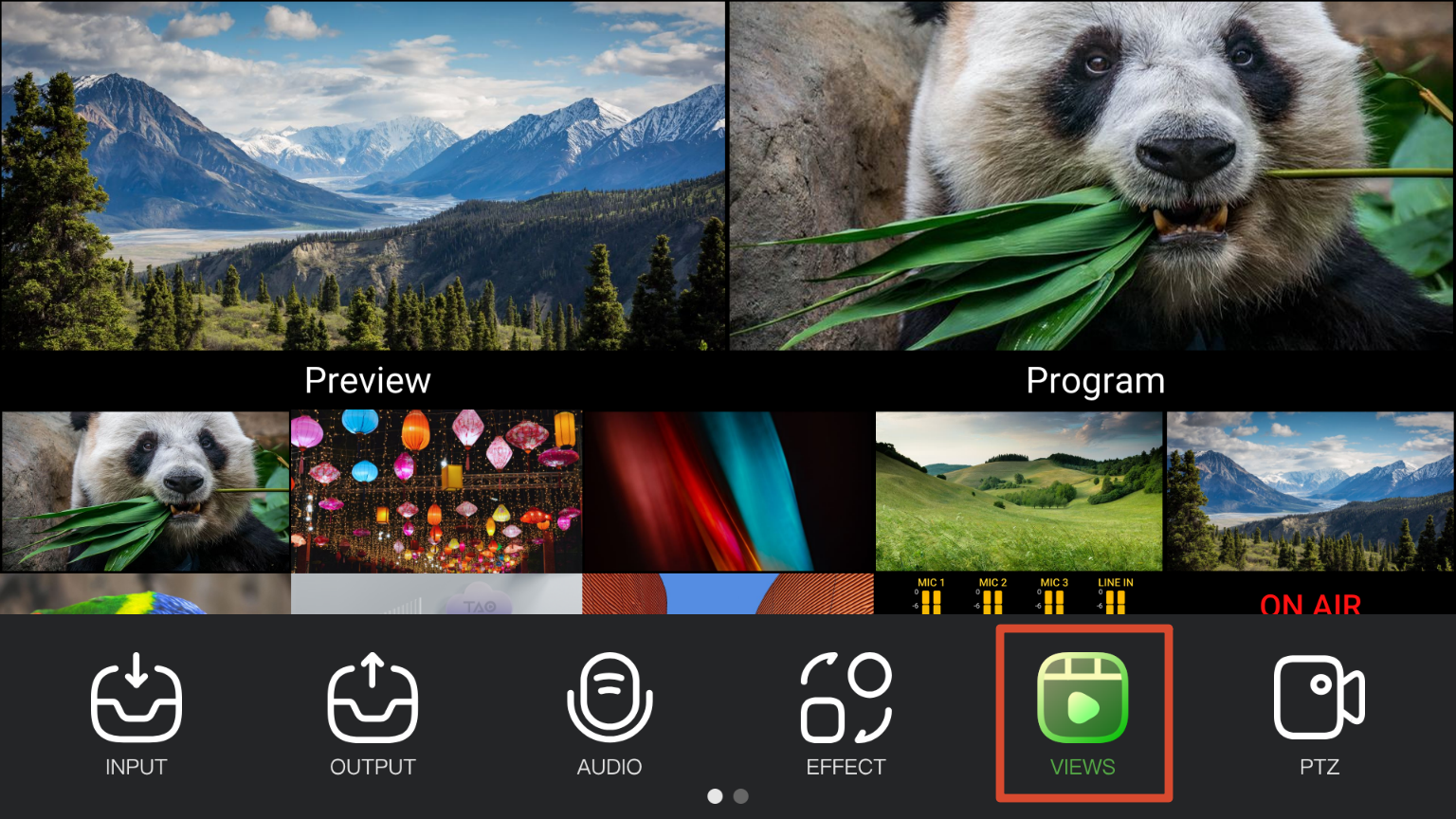
The VIEWS function saves and restores device configurations.
Save layouts, inputs, PTZ presets and effects as a view, then recall them instantly when needed.
Each saved view stores the current configuration, including layout settings, input assignments, PTZ camera presets, chroma key settings, and so on.
3.9.1 Views Status
Views List on the Touchscreen
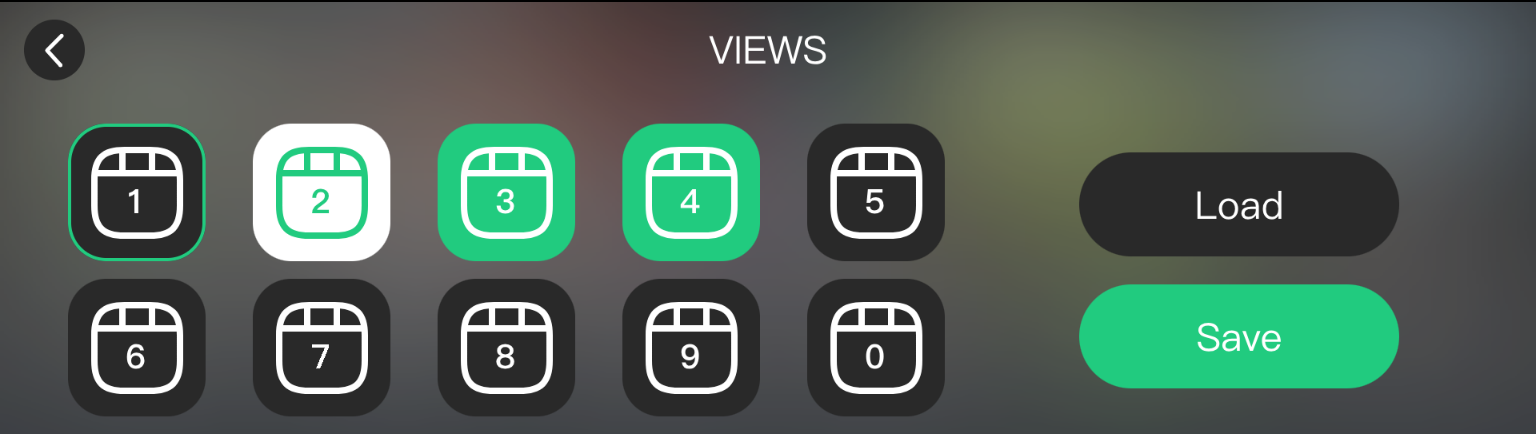
| Status | Description |
|---|---|
| Black | Empty view slot. |
| White | Selected view slot. |
| Green | Saved view. |
VIEWS Buttons on the Front Panel
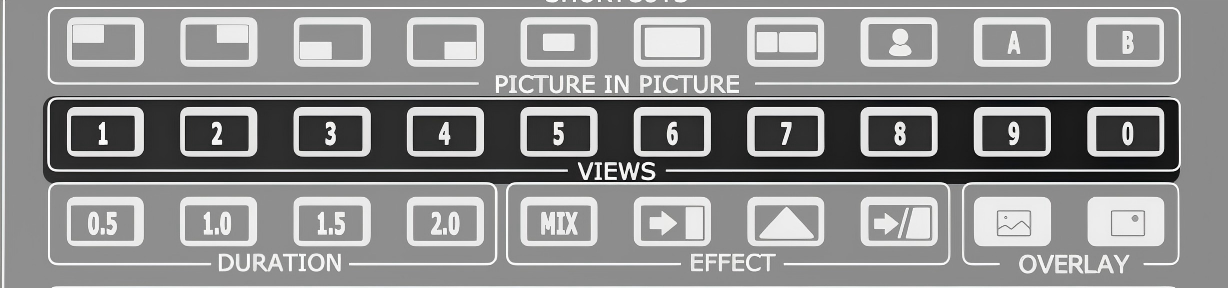
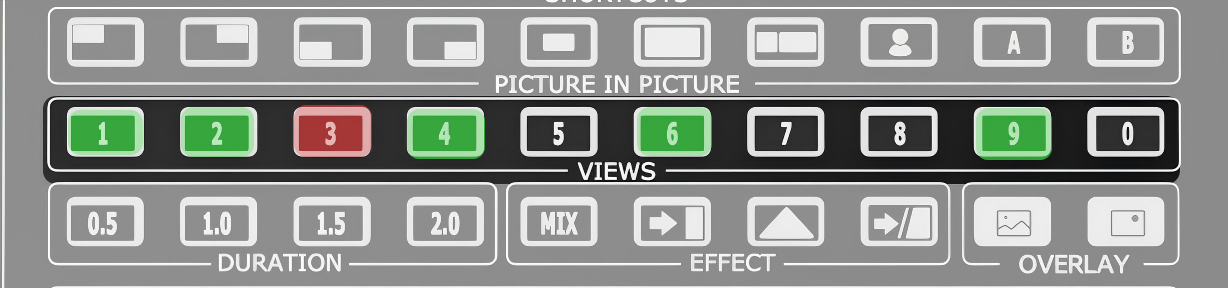
| Status | Description |
|---|---|
| Off | Empty view slot. |
| Solid Green | Saved view. |
| Solid Red | View is loading to Preview. |
3.9.2 Saving or Replacing a View
Saving a view records the current device configuration.
If the selected view slot already contains a saved view, the new view replaces the existing one.
Saving from the Touchscreen:
- Complete the required configuration.
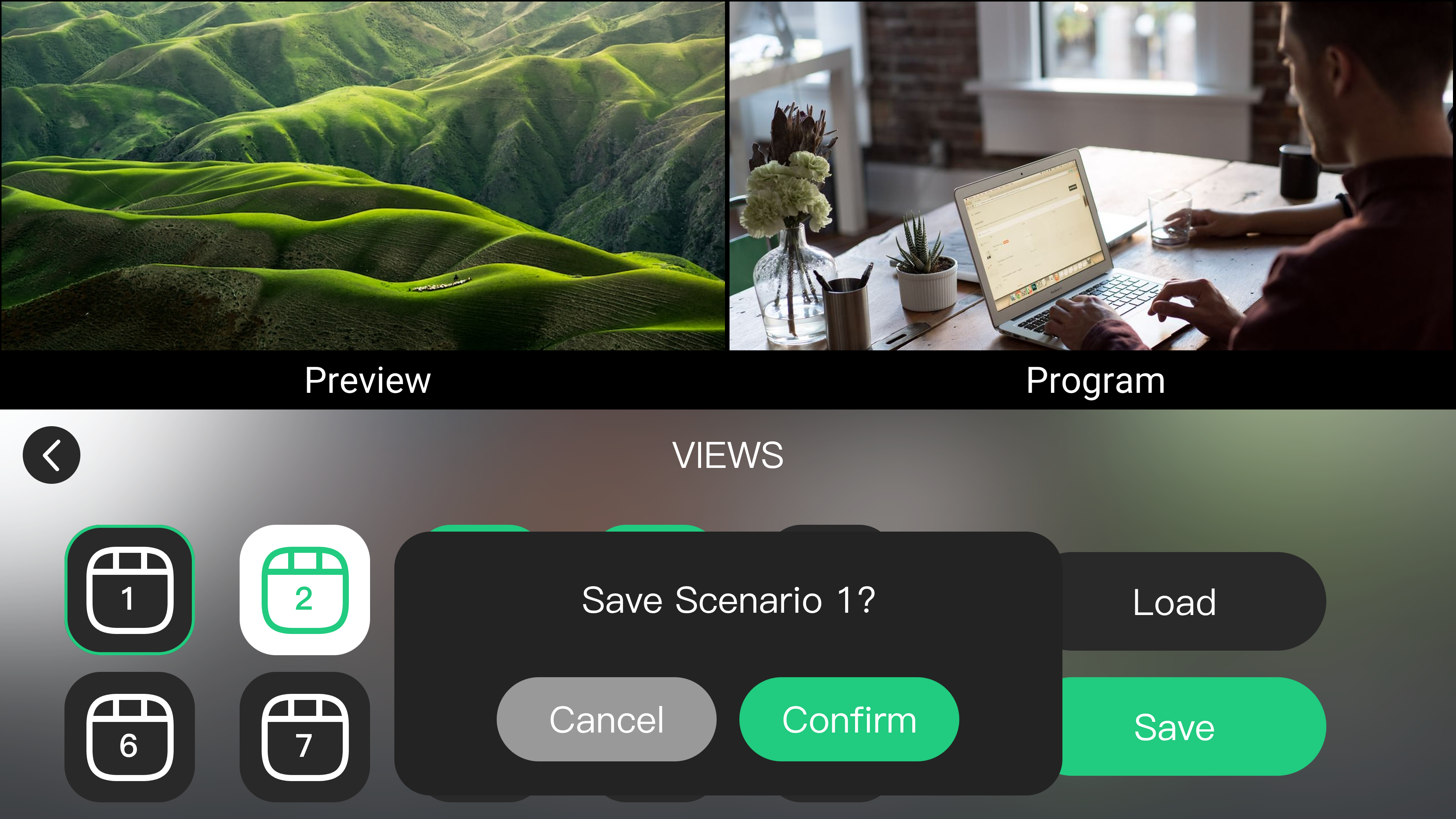
- Go to MENU > VIEWS.
- Set the operation mode to Save.
- Select a view slot.
- Tap the view slot twice.
- Confirm the operation in the dialog box.
Saving from the Front Panel:
- Complete the required configuration.
- Press and hold the corresponding number button in the VIEWS section.
- Confirm the operation in the dialog box.
📢  Notes

- If the selected slot is empty, mini-extreme creates a new view.
- If the selected slot already contains a saved view, mini-extreme  replaces it.
3.9.3 Load a View
Loading a view restores a saved configuration without reconfiguring layouts, input sources, or image effects.
Loading from the Touchscreen:
- Go to MENU > VIEWS.
- Set the operation mode to Load.
- Select the view to load.
Loading from the Front Panel:
- Press the number button corresponding to a saved view in the VIEWS section.
- Load the view to the Preview window.
📢  Notes

Loading a view restores all saved parameters, including layout settings, input assignments, PTZ presets, and image effect settings.