Online Manual
mini-extreme ISO User Manual

2.2.11 Live Streaming
mini-extreme ISO supports video output via USB, network streaming, and NDI.
Before using network streaming or NDI, connect mini-extreme ISO to the network and bind it to TAO Cloud.
OBS Capture
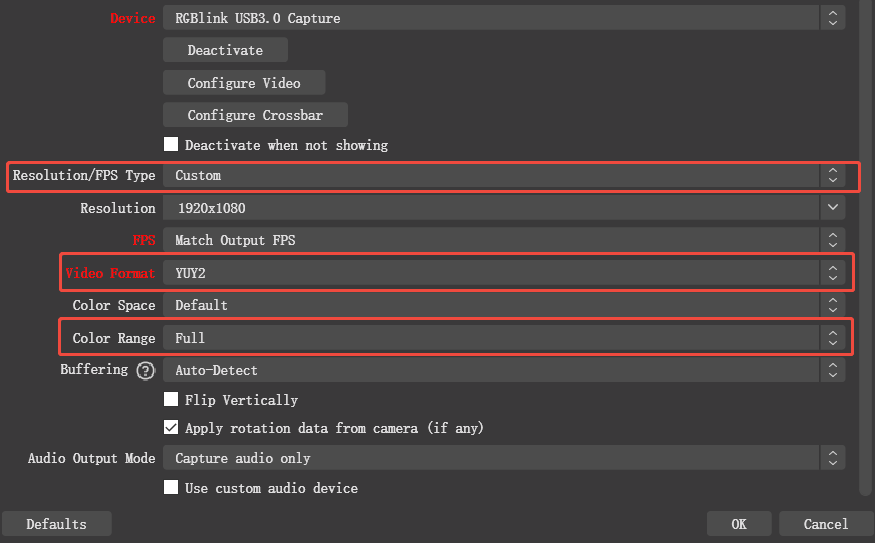
Connect mini-extreme ISO to a computer via USB 2 and add it as a video capture device in OBS.
- Connect USB 2 on mini-extreme ISO to the computer.
- Open OBS.
- Add a video capture device.
- Select
RGBlink USB3.0 Capture.
Network Streaming
Send a streaming URL from TAO Cloud to mini-extreme ISO, then start streaming on the device.
- Get the streaming URL and stream key from the target platform.
- Sign in to TAO and bind the device. See chapter TAO Cloud.
- Go to Device Management page > Stream.
- Enter the streaming URL and stream key.
- Click Distribute.
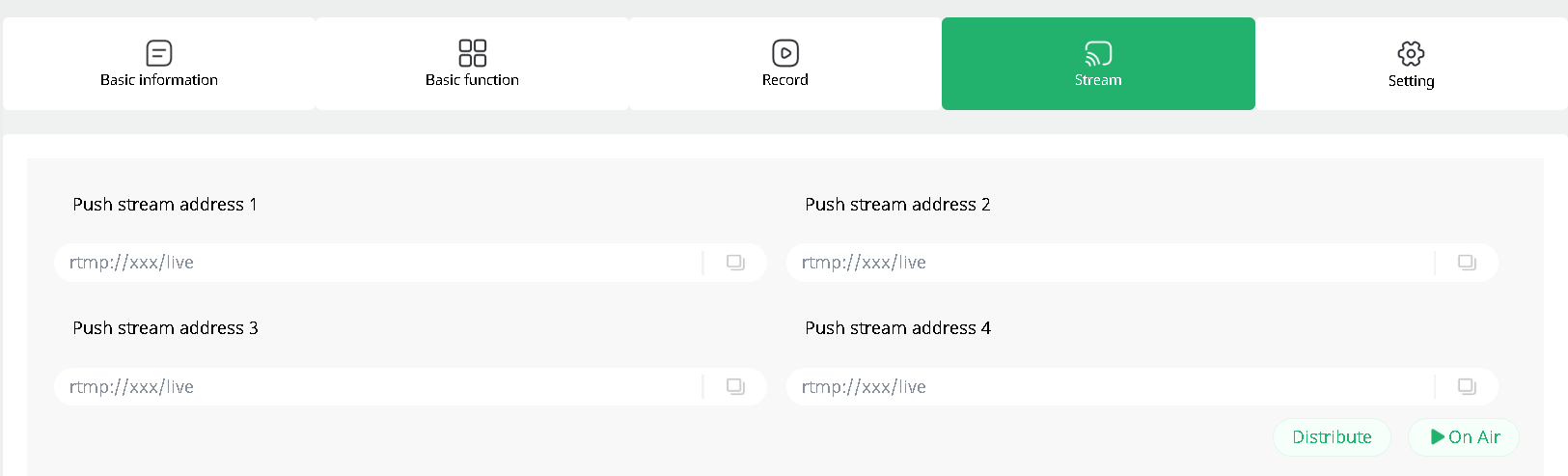
On mini-extreme ISO, go to OUTPUT > Stream and verify that the streaming URL has been received.
Start Streaming
After the streaming URL is received:
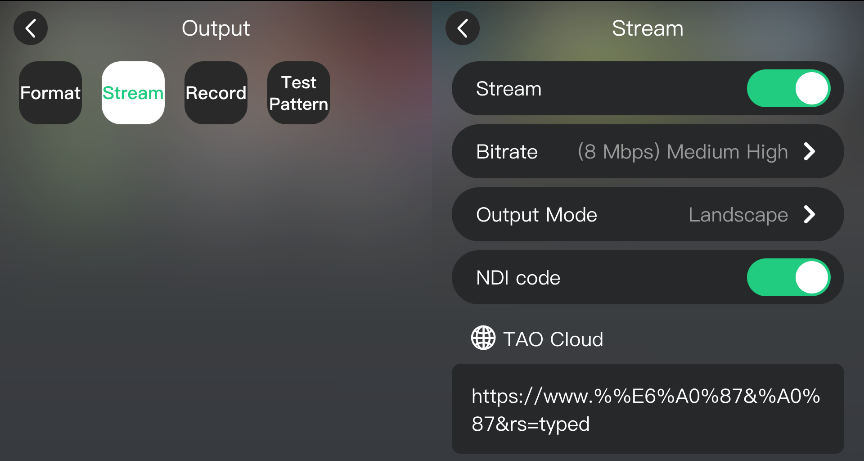
- Go to OUTPUT > Stream.
- Set the streaming bitrate and output mode.
- Select the target URL under TAO Cloud.
- Enable Stream, or press ON AIR on the front panel.
NDI Encoding
NDI encoding converts the video output to an NDI stream for transmission over the network.
- Sign in to TAO and bind the device. See chapter TAO Cloud.
- Go to Device Management page > Setting and authorize NDI.
- Enable NDI code under Stream on the device.